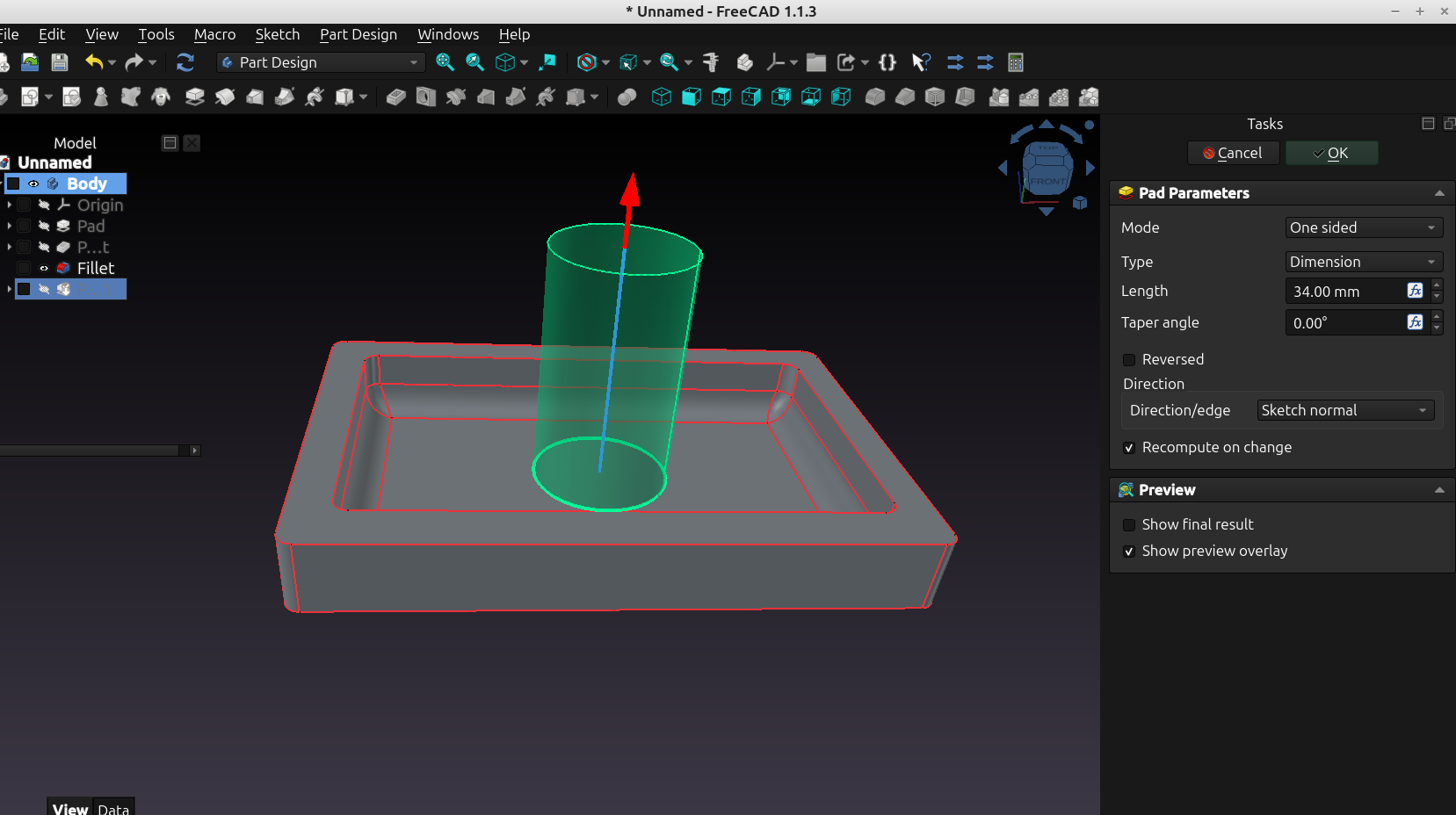
Post #163 Beginners guide to FreeCAD: Effectively using the tree.

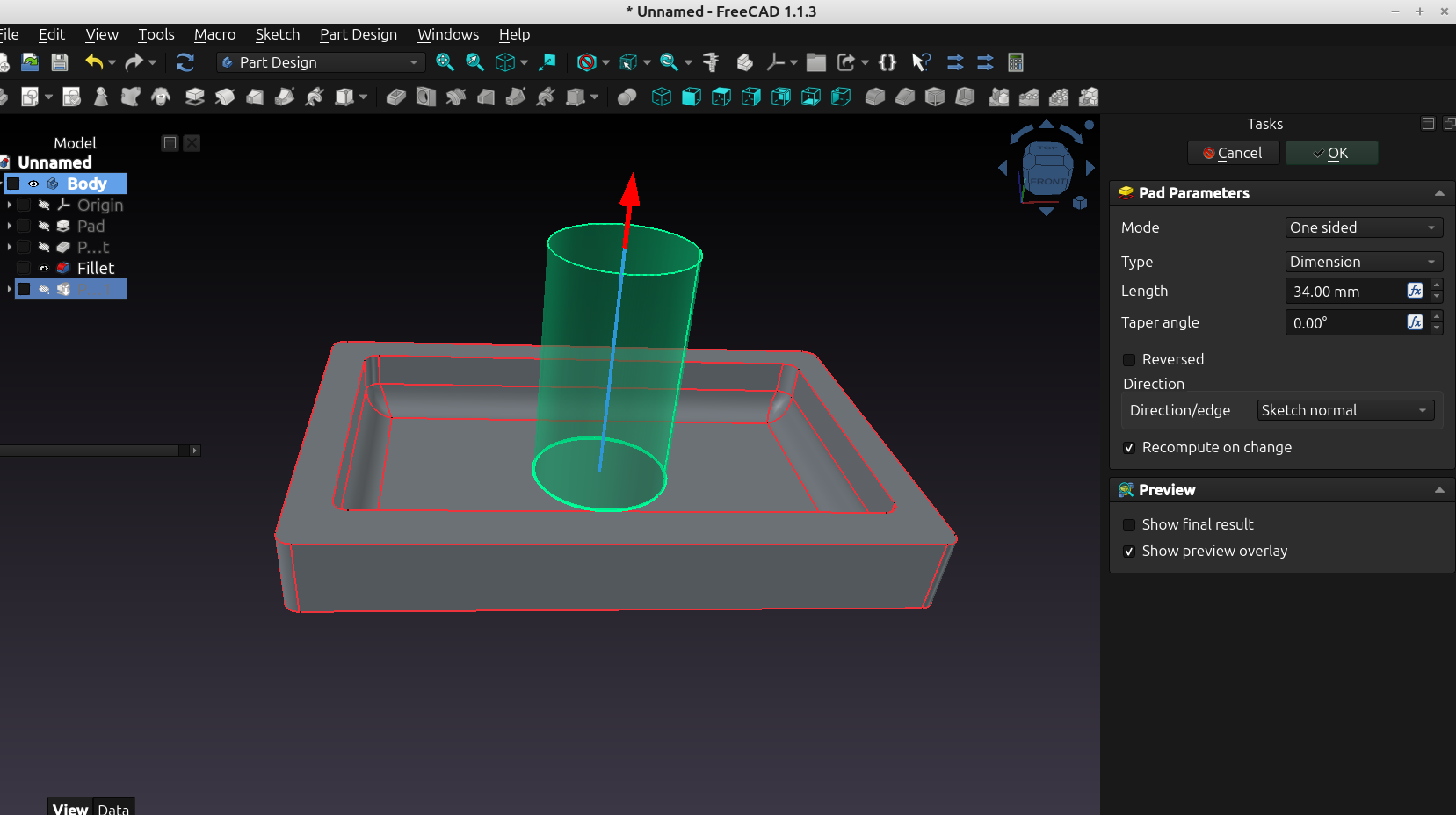
After reading through this post you will begin to see just how easy it is to make models with FreeCAD and just how powerful a tool it really is considering it's free.
Making a simple object is one thing but making designs with complex features takes 3d CAD to another level and I will show you just how easy it is with just a few simple tips.
As always you have to start with a new document, you can use the new document icon or go to File>New Document
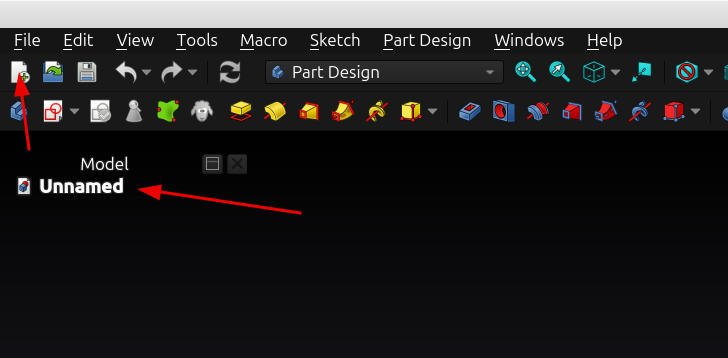
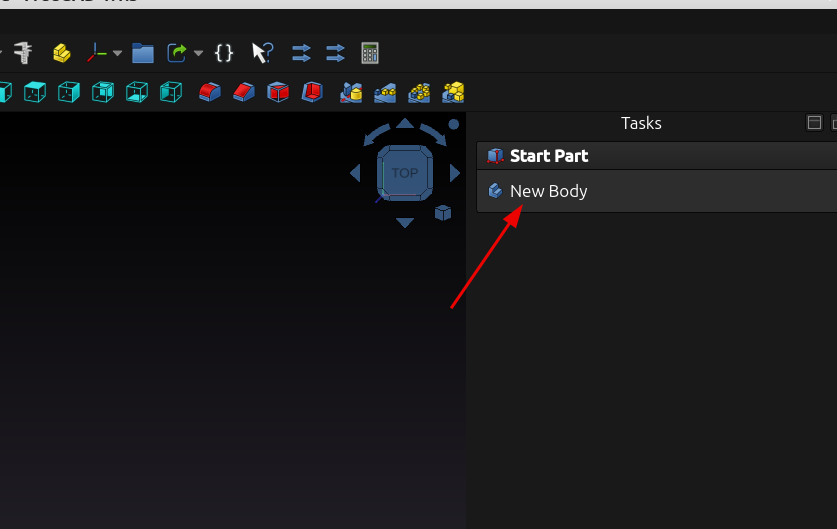
Then create a new body, and then a new sketch:
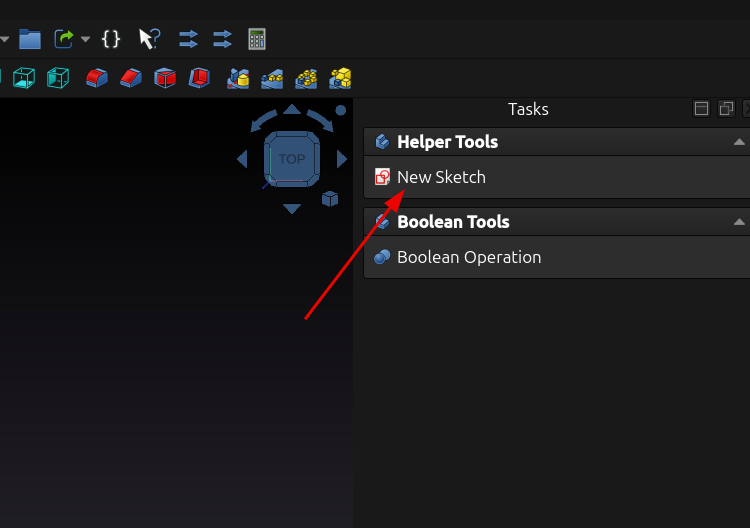
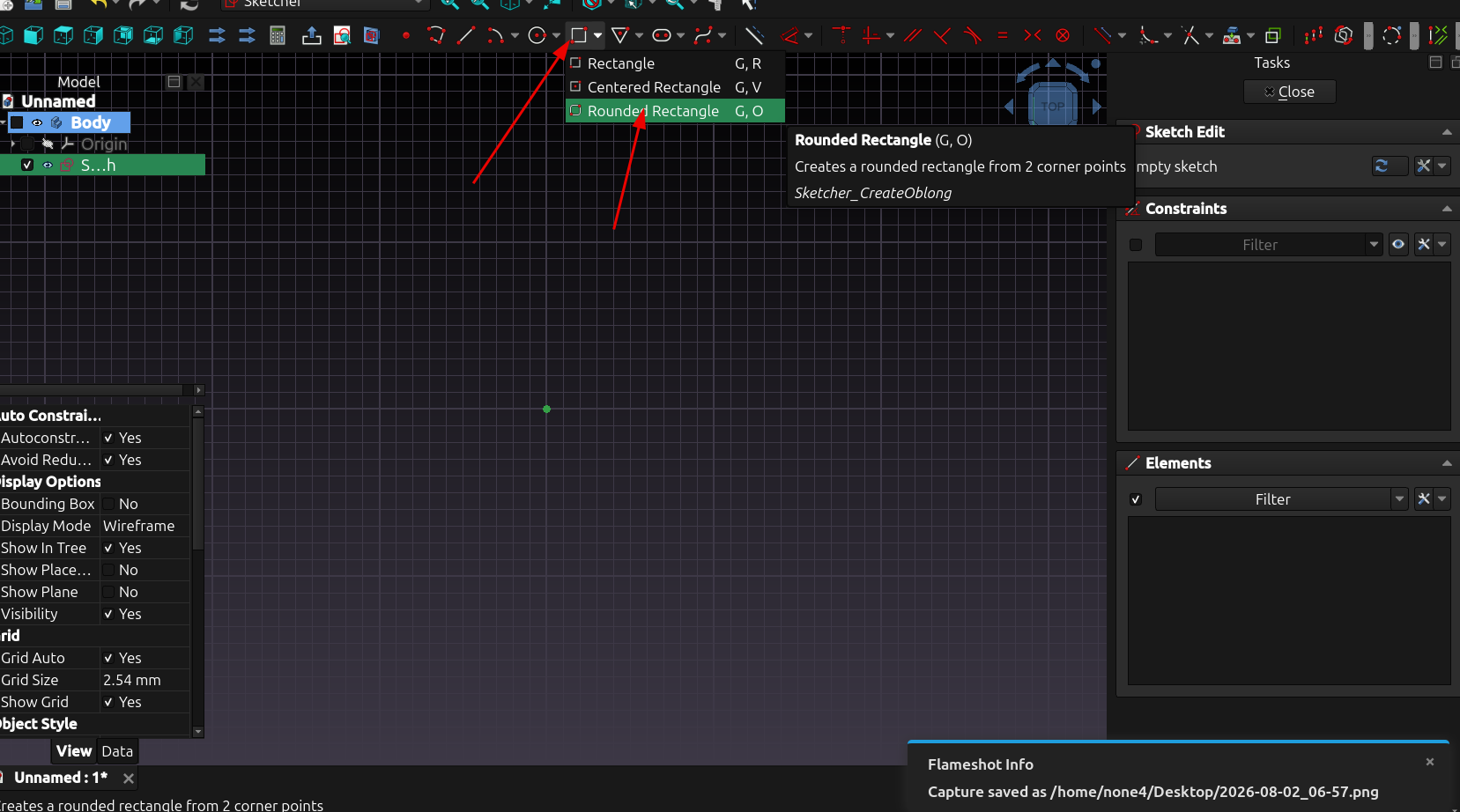
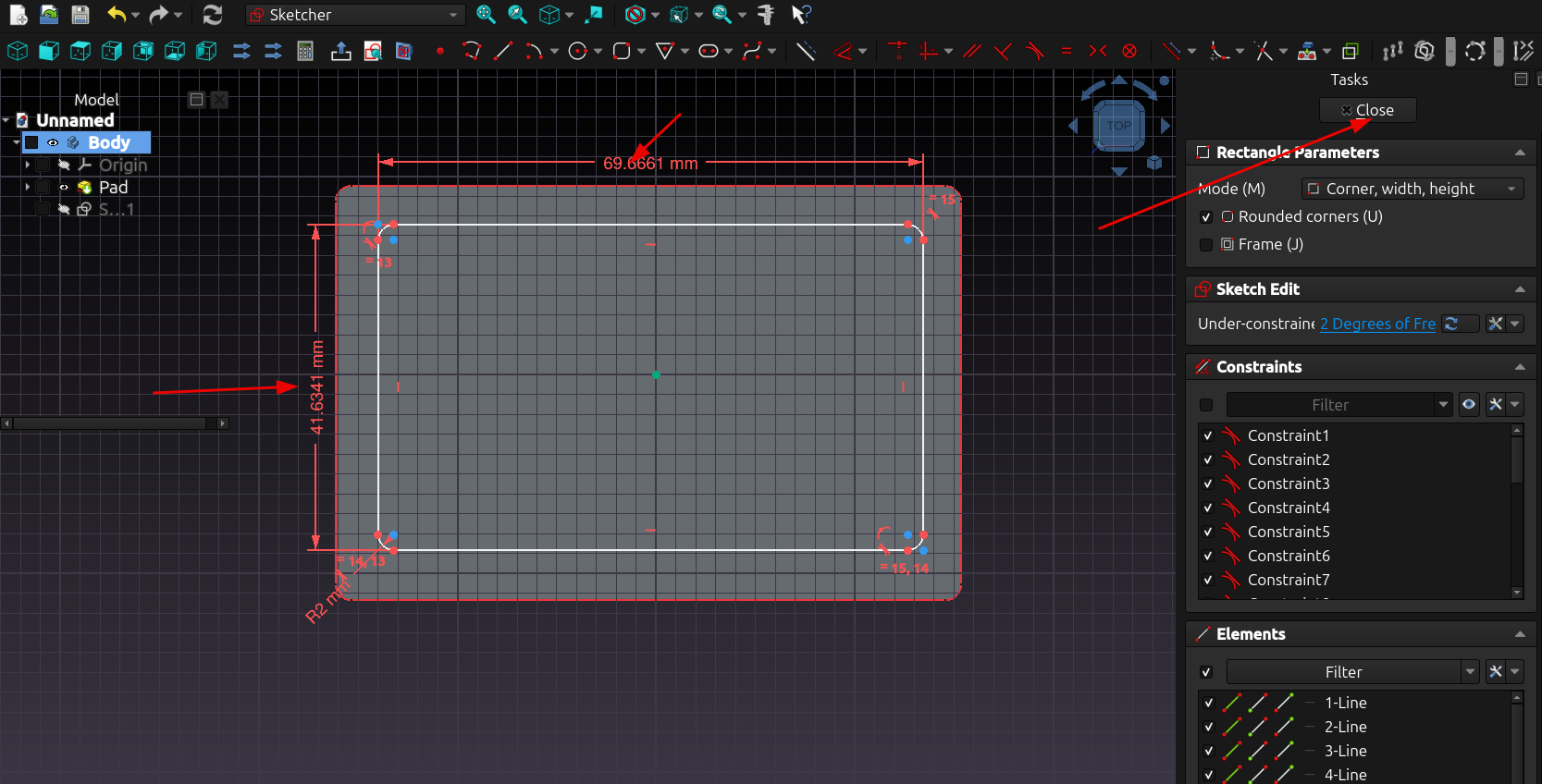
Now that I am in the "sketcher" workbench I can select a rounded rectangle for this example:
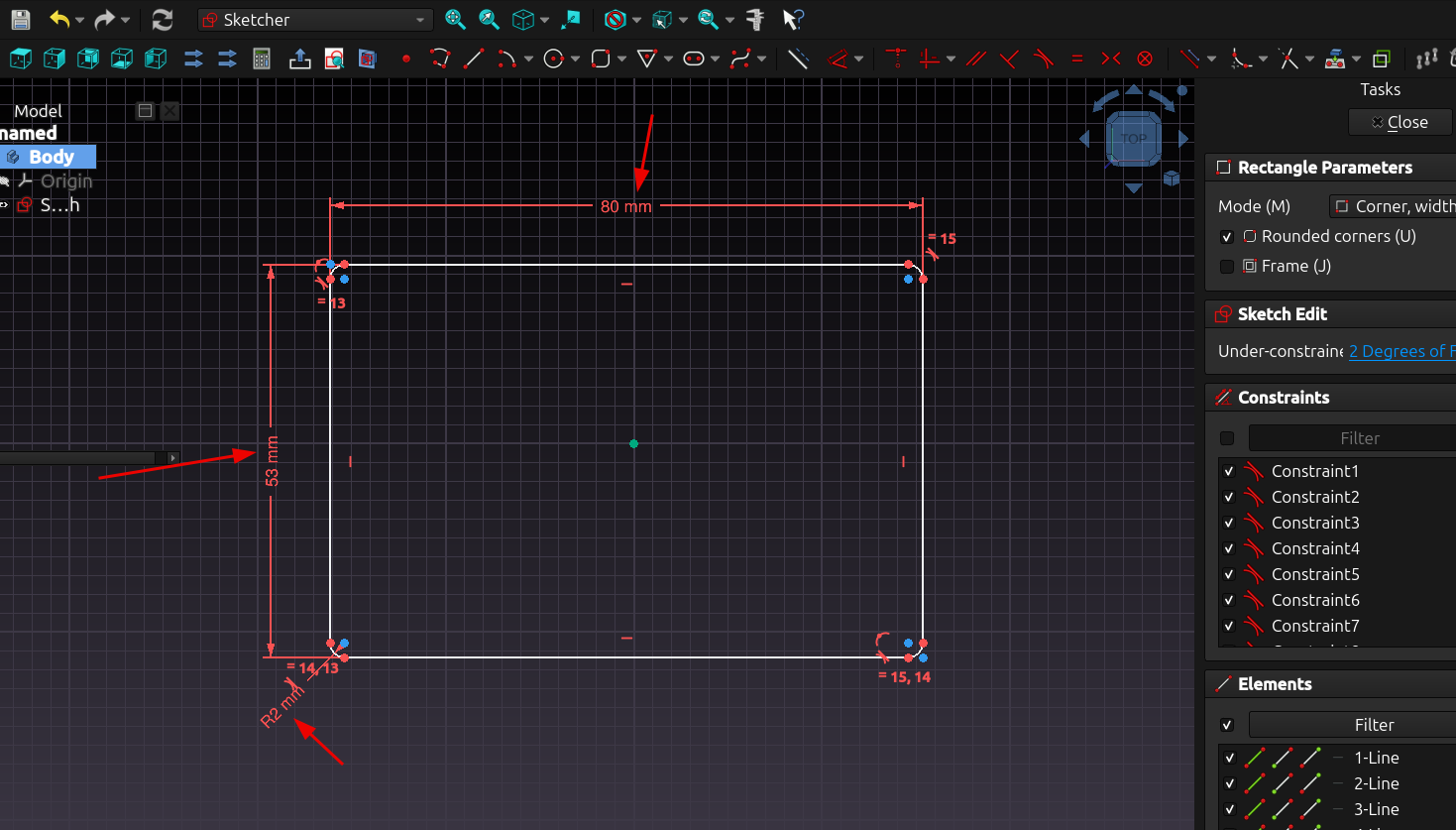
I select where I want the rectangle to be drawn on the canvas, draw the rectangle and press enter to specify the size for horizontal, vertical and corner radius:
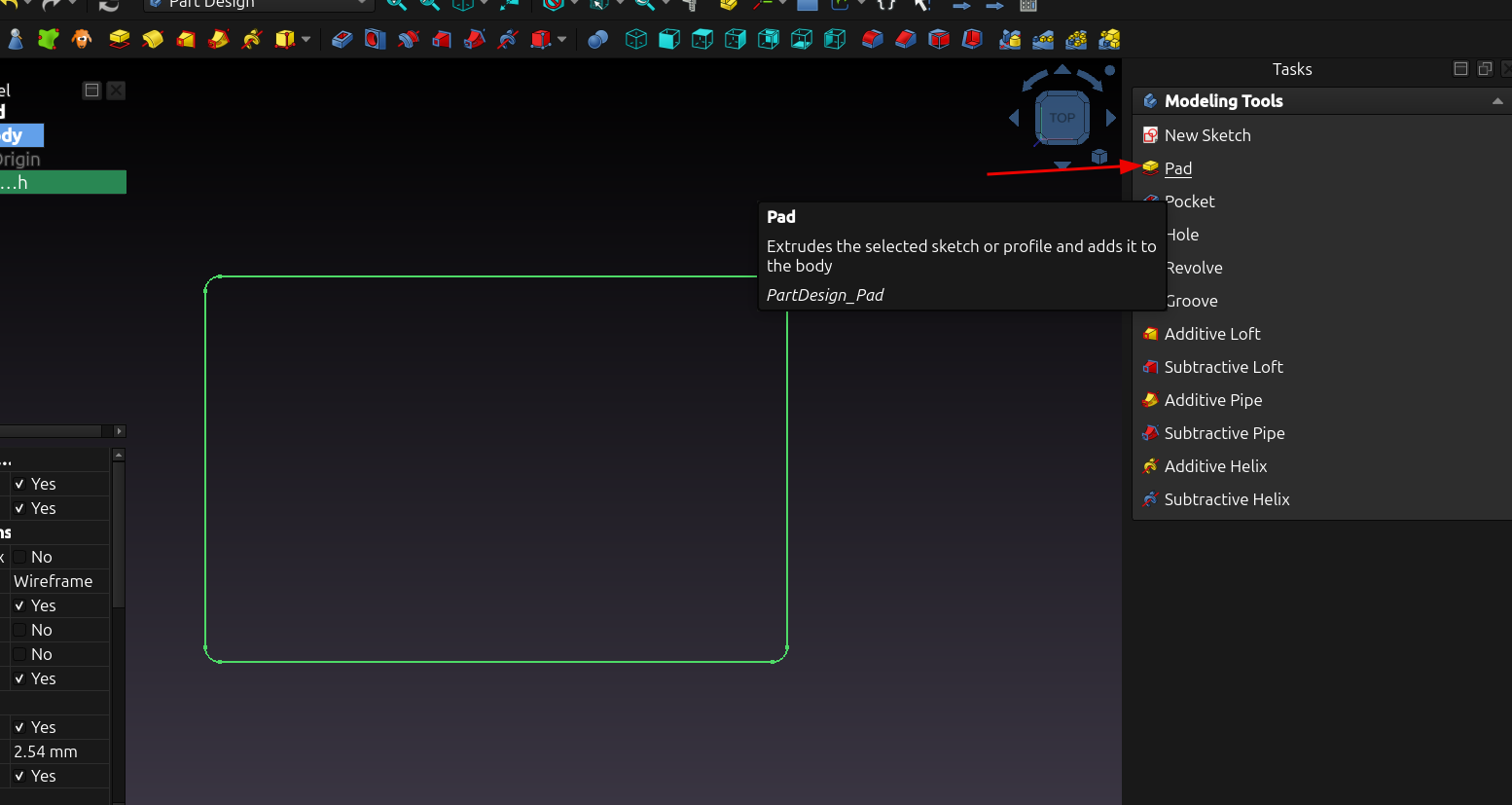
As soon as I click close in the task menu, the options menu to create a 3d object pops up and I selected "pad"
And extrude the shape with either the drag arrows or enter it manually in the entry box:
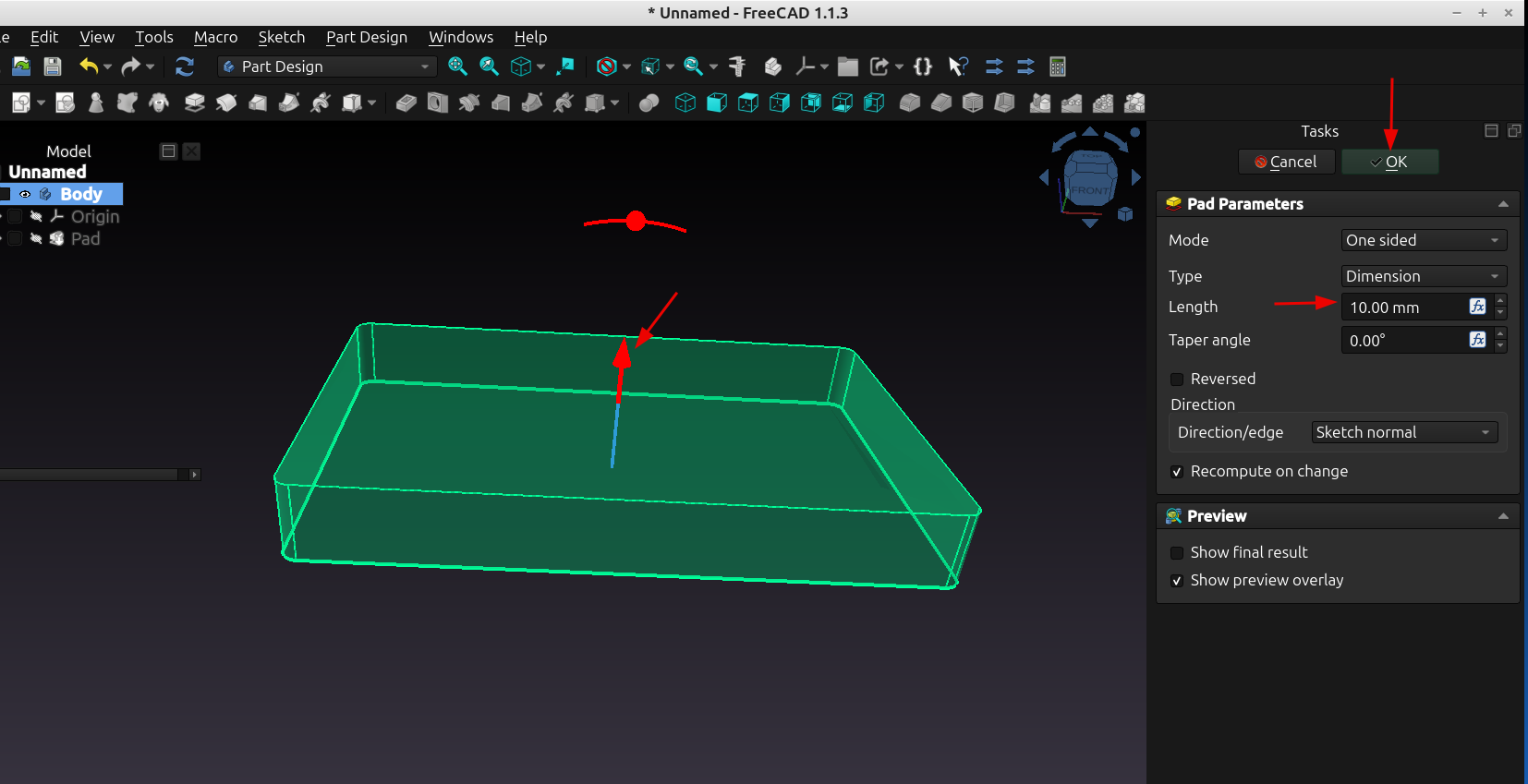
Once I click "ok" I can then select a specific face that I want to add another sketch to:
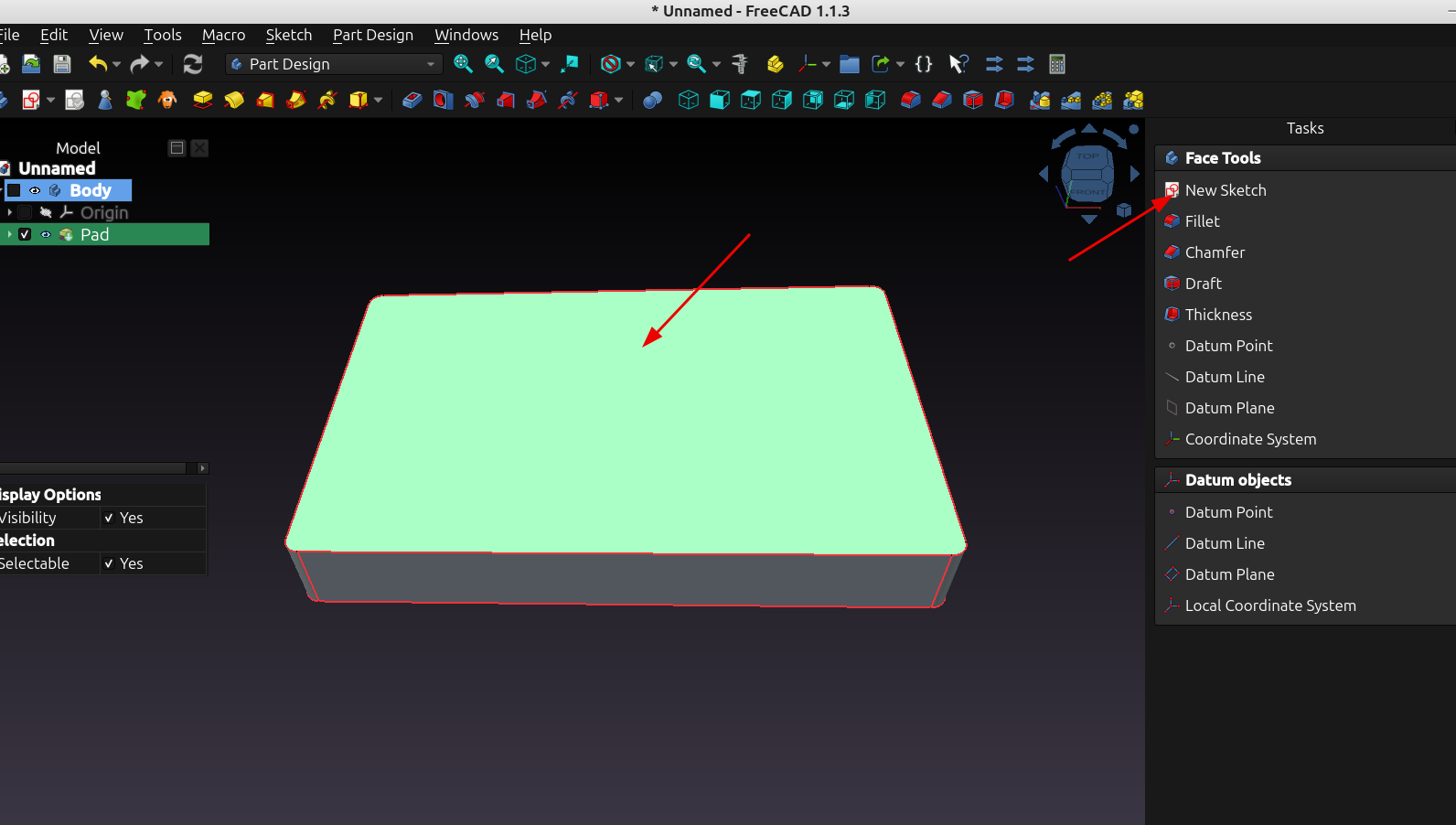
Now I can draw another sketch on the face that I selected:
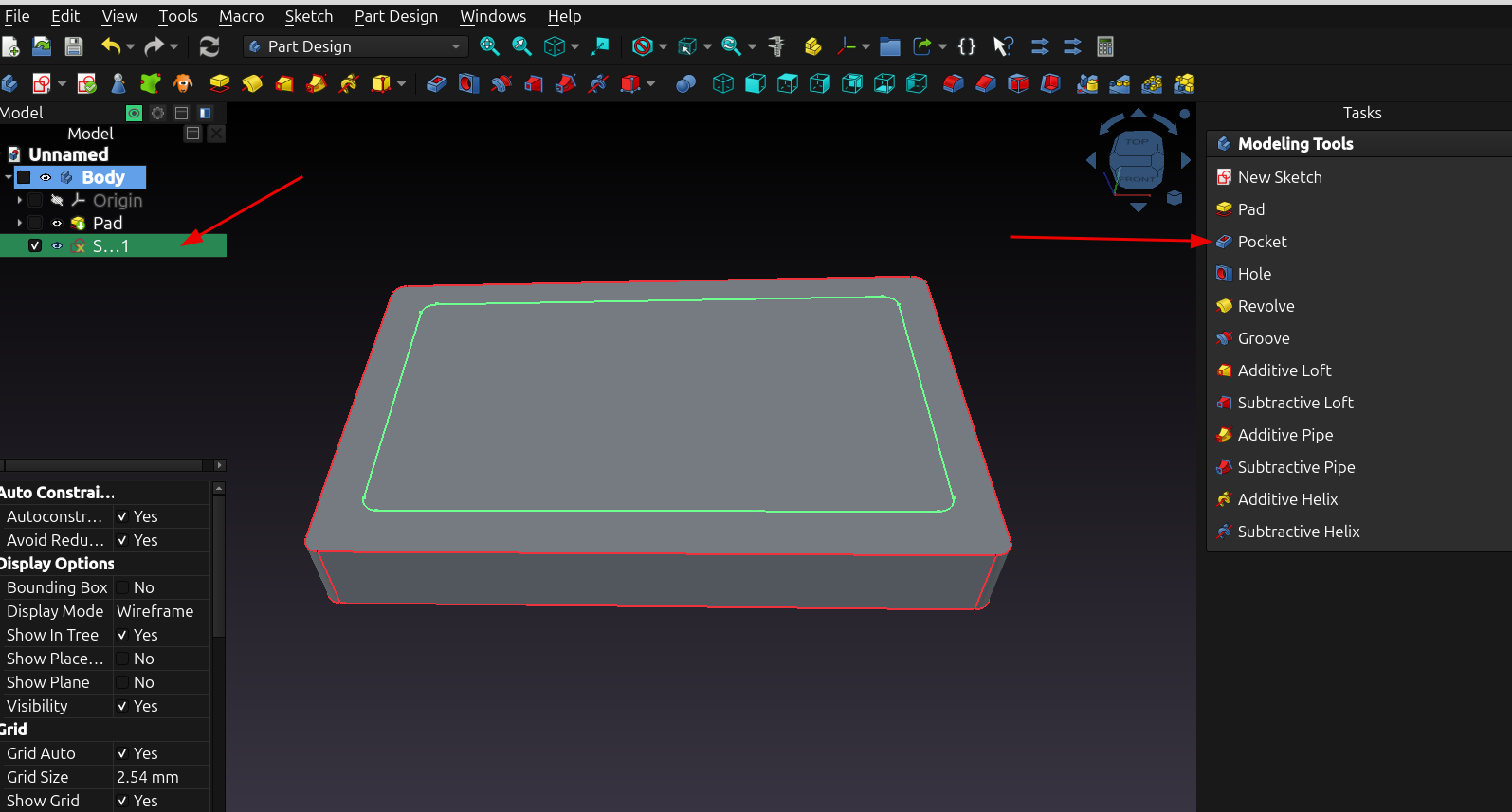
After I click close I can now perform 3d operations on the new sketch, for this example I chose "pocket", you will notice that I made sure the sketch was selected in the tree:
Now I can adjust the pocket and click ok:
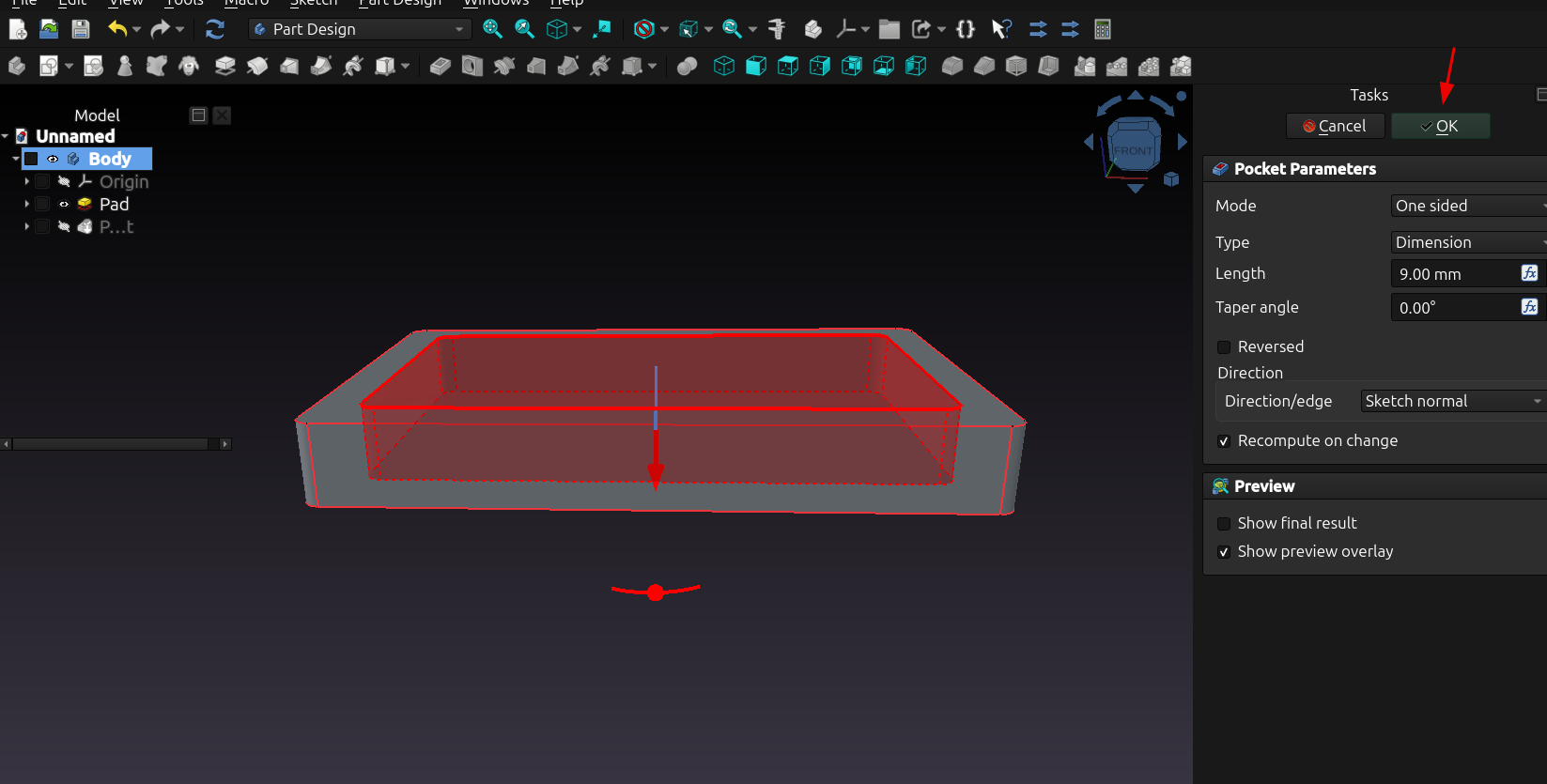
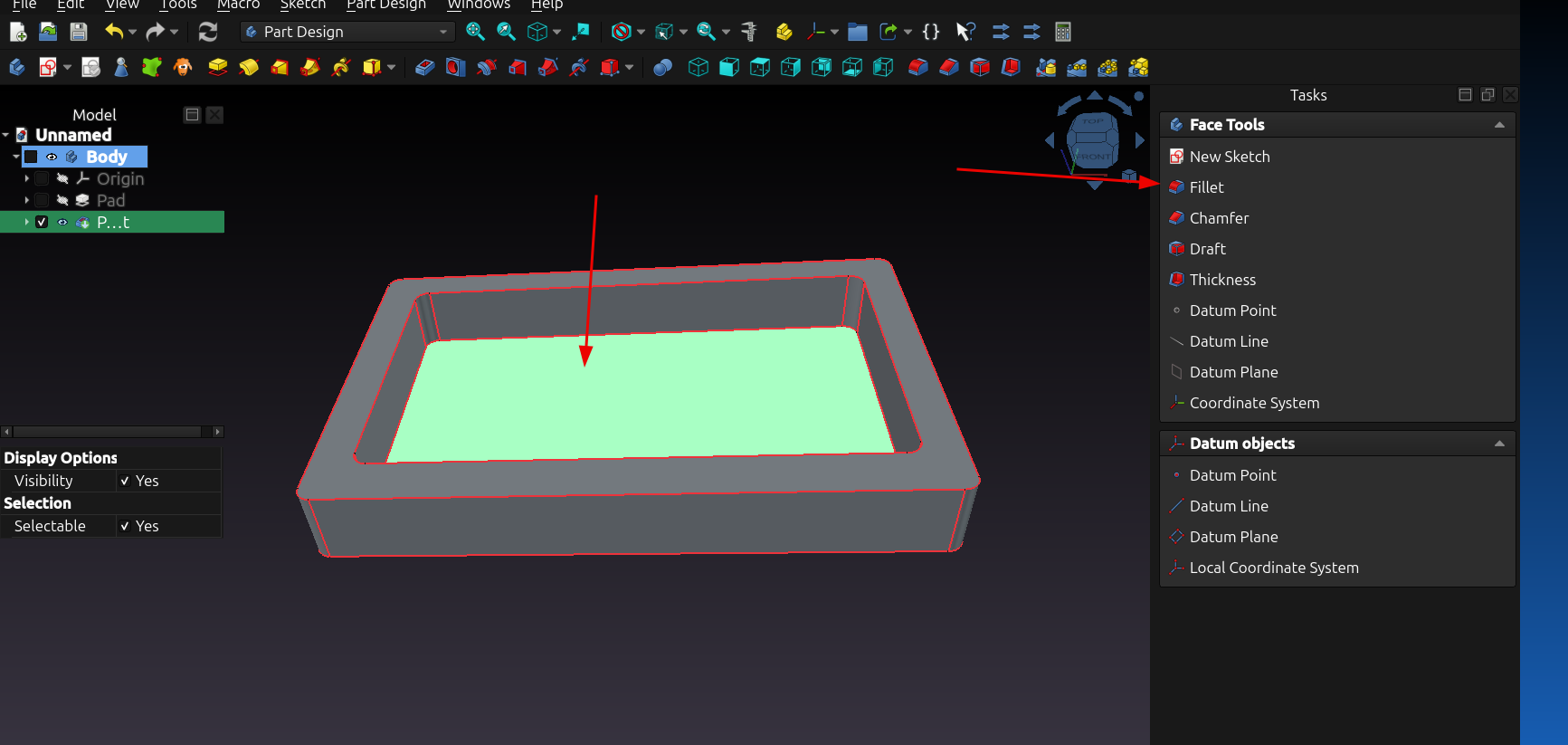
Next I selected the face at the bottom of the pocket and then selected "fillet" from the task menu:
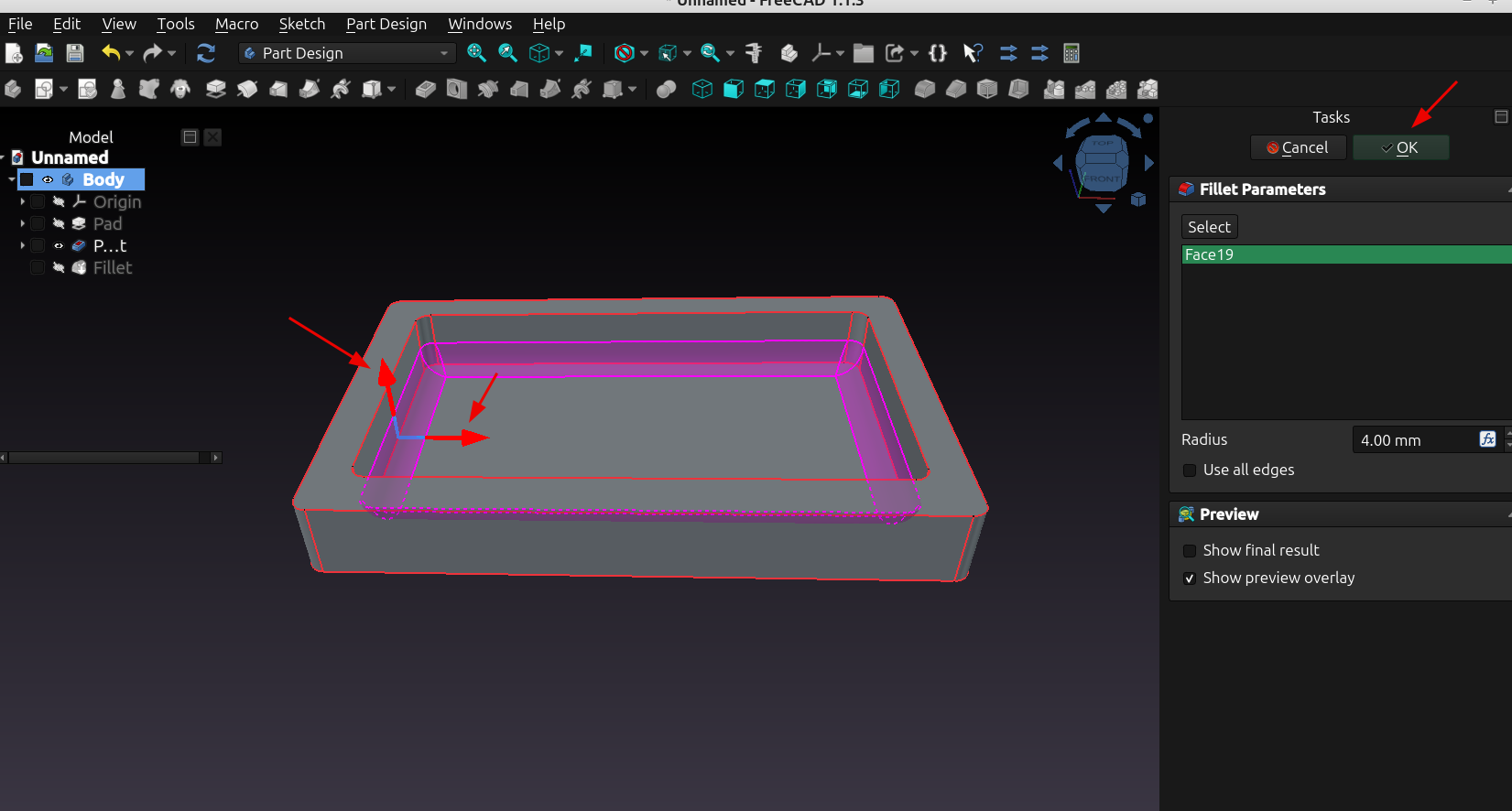
And then adjusted the radius of the fillet:
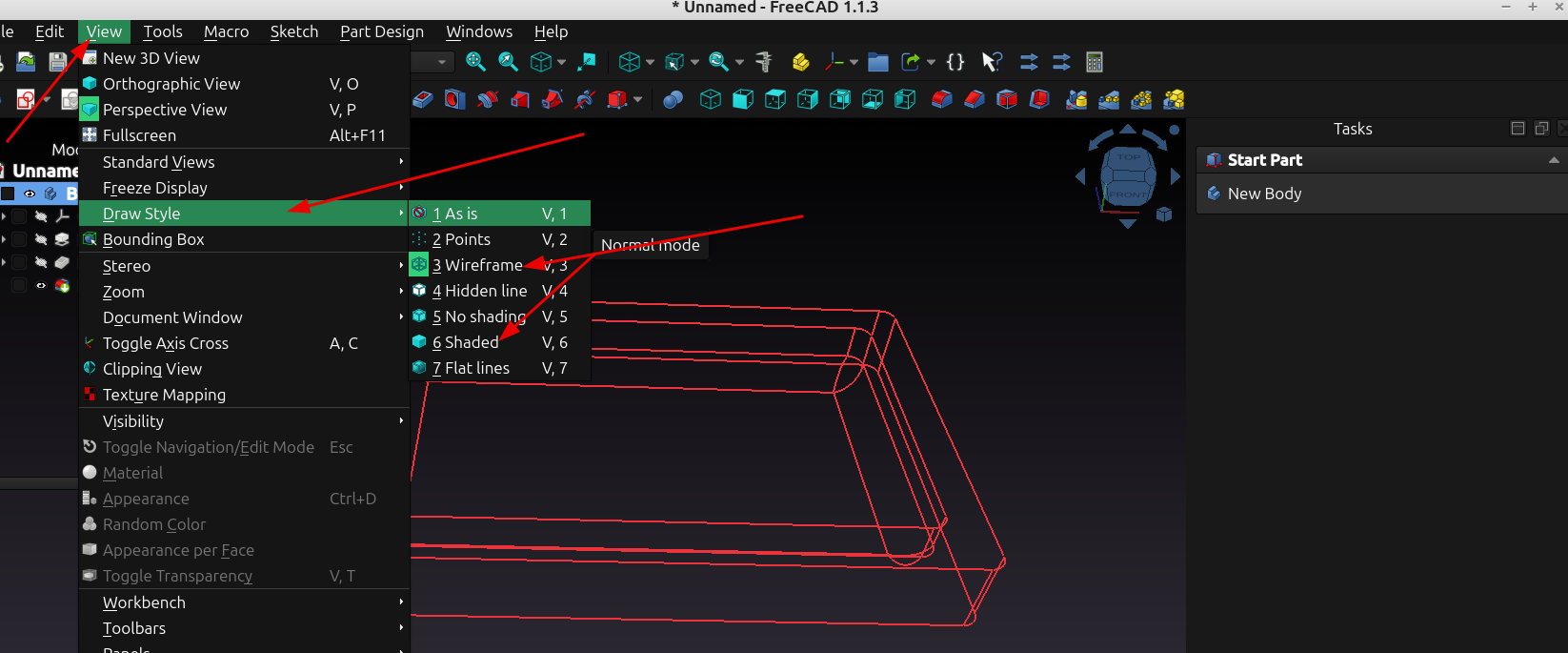
Some times it's handy to change the view style when you are working with things, just go to View > Draw Style and select one of the different options:
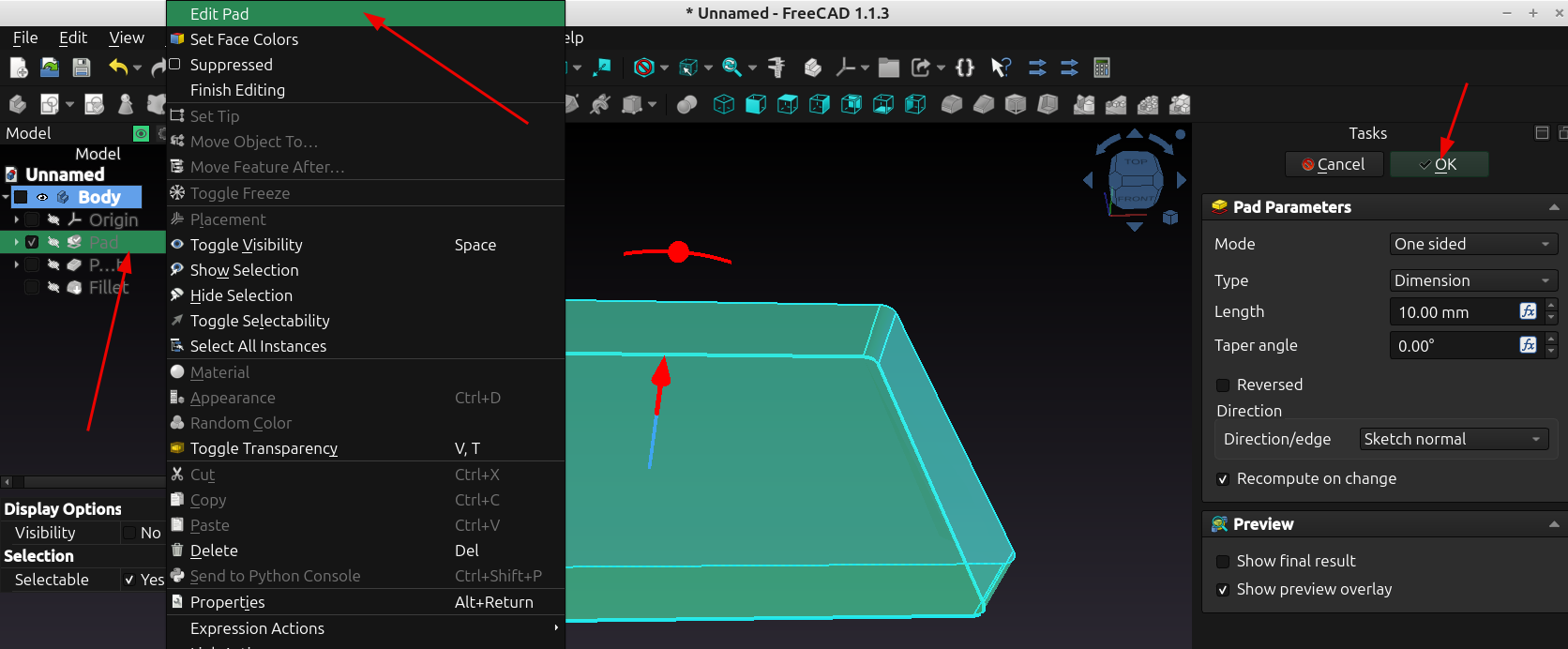
After the object is made you might ask "great but how do I make changes to things like a pad or fillet?" , well it's actually super easy and this is where using the tree effectively really comes in, just select an item in the tree, right click it and select edit at the top of the menu:
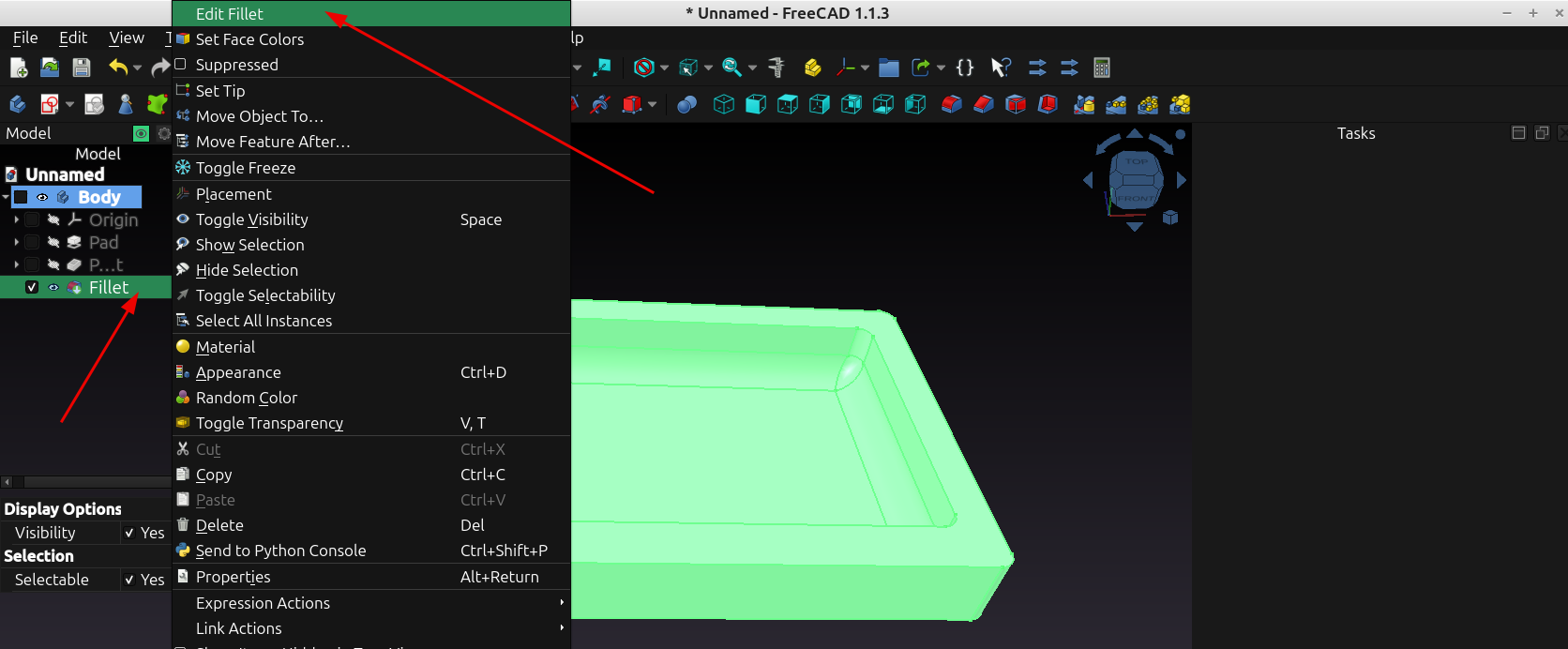
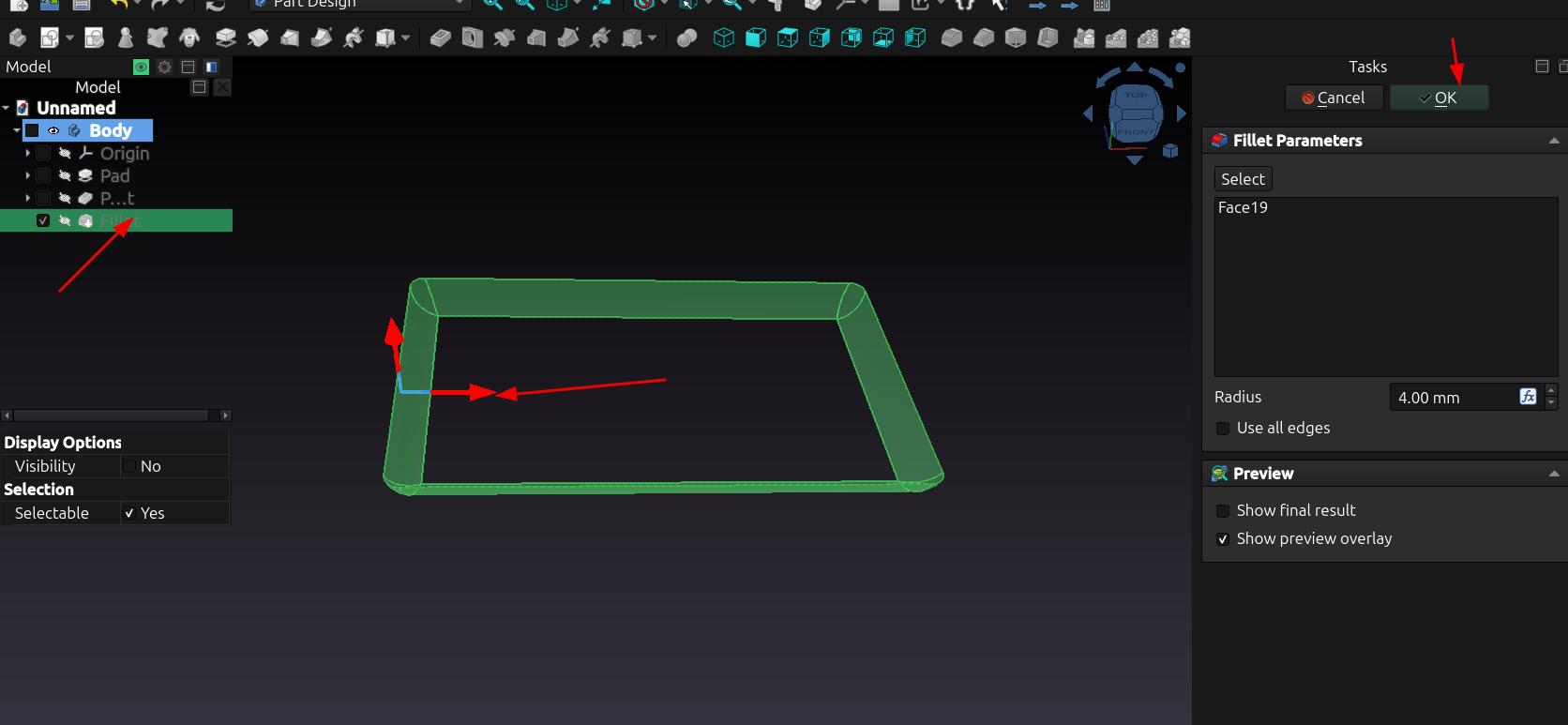
This will open the edit options in the task menu, by pressing the space bar you can also show or hide the different elements, here I pressed the space bar twice and now it only shows the fillet:
Here I selected a pad from the tree, then selected edit pad from the menu, and now I can change the properties of the pad:
In conclusion after creating a new document, body and sketch you can extrude the sketch and add another sketch to any face you select, make it a pad, hole, pocket etc...
And you can modify any of the parameters of any of the specific elements in the tree just by selecting them and choosing "edit"
If you follow the steps I have outlined above and make some basic shapes, experiment and change a few things you will see just how easy it is to make a very complex model in a short amount of time.