
Post #162: Beginners guide to FreeCad-Setting up the GUI for your workflow.

When you first start using FreeCad all of the options can be overwhelming but once you are familiar with some basic settings it will make things much easier. Here are a few examples of some of the things I have found useful and I highly encourage reading through all of the different options in the preferences so that when you see a term you are not familiar with you can go online and learn more about it.
One of the excellent features in FreeCad is the amount of customization you can do to the layout so you can find things easier and make the program more usable for certain tasks, or remove things you rarely use or re-arrange them so they have a lower priority.
I am using the latest version of FreeCad 1.1.3
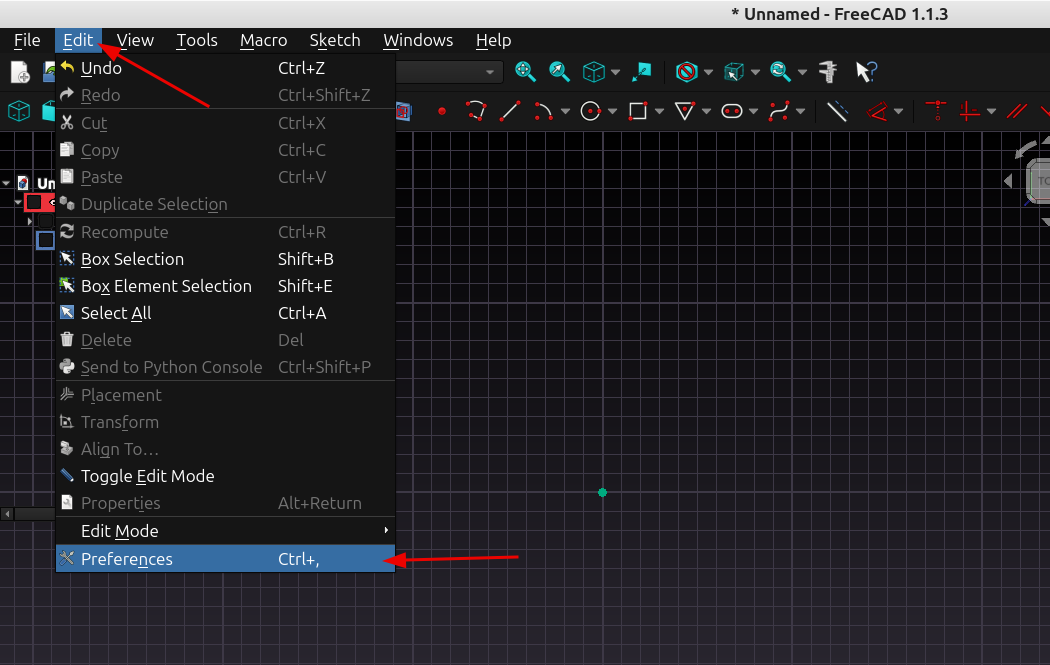
To access the preferences menu go to Edit>Preferences
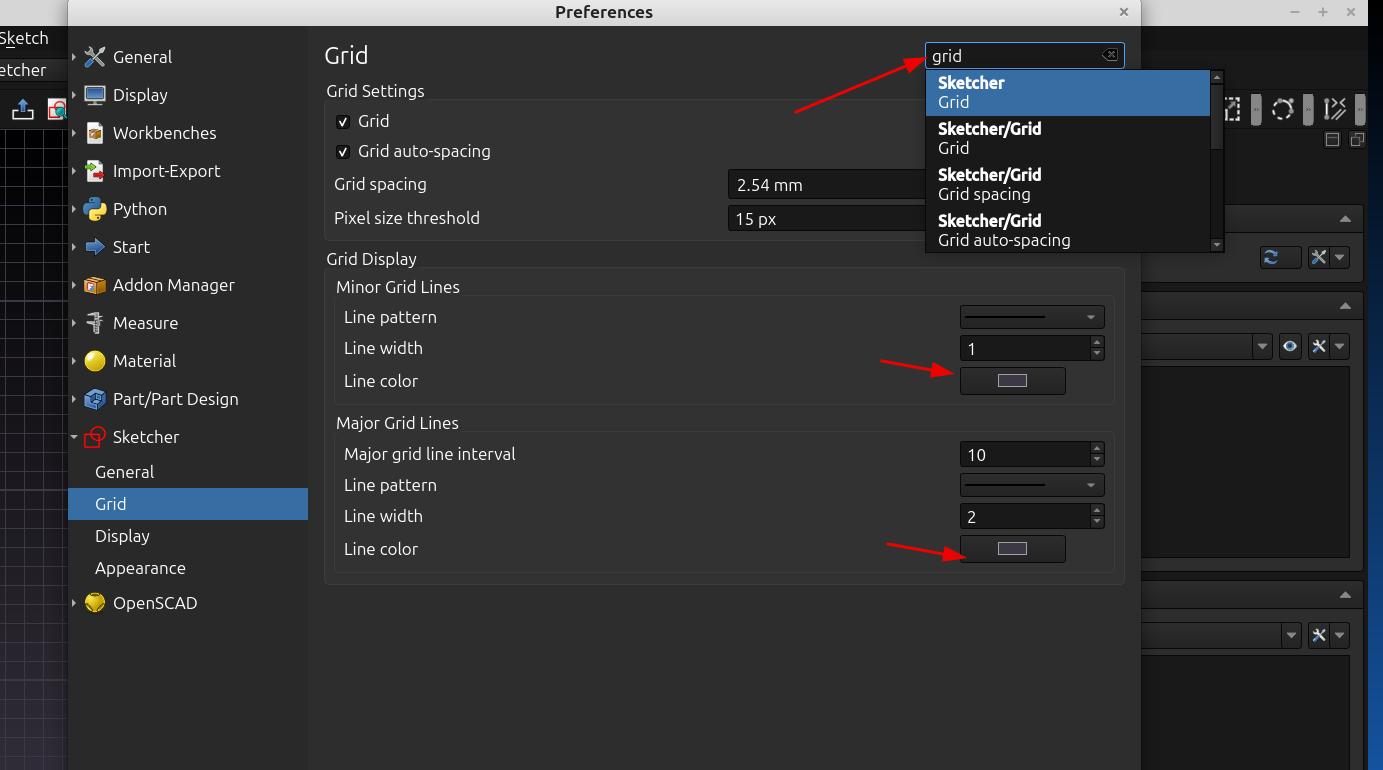
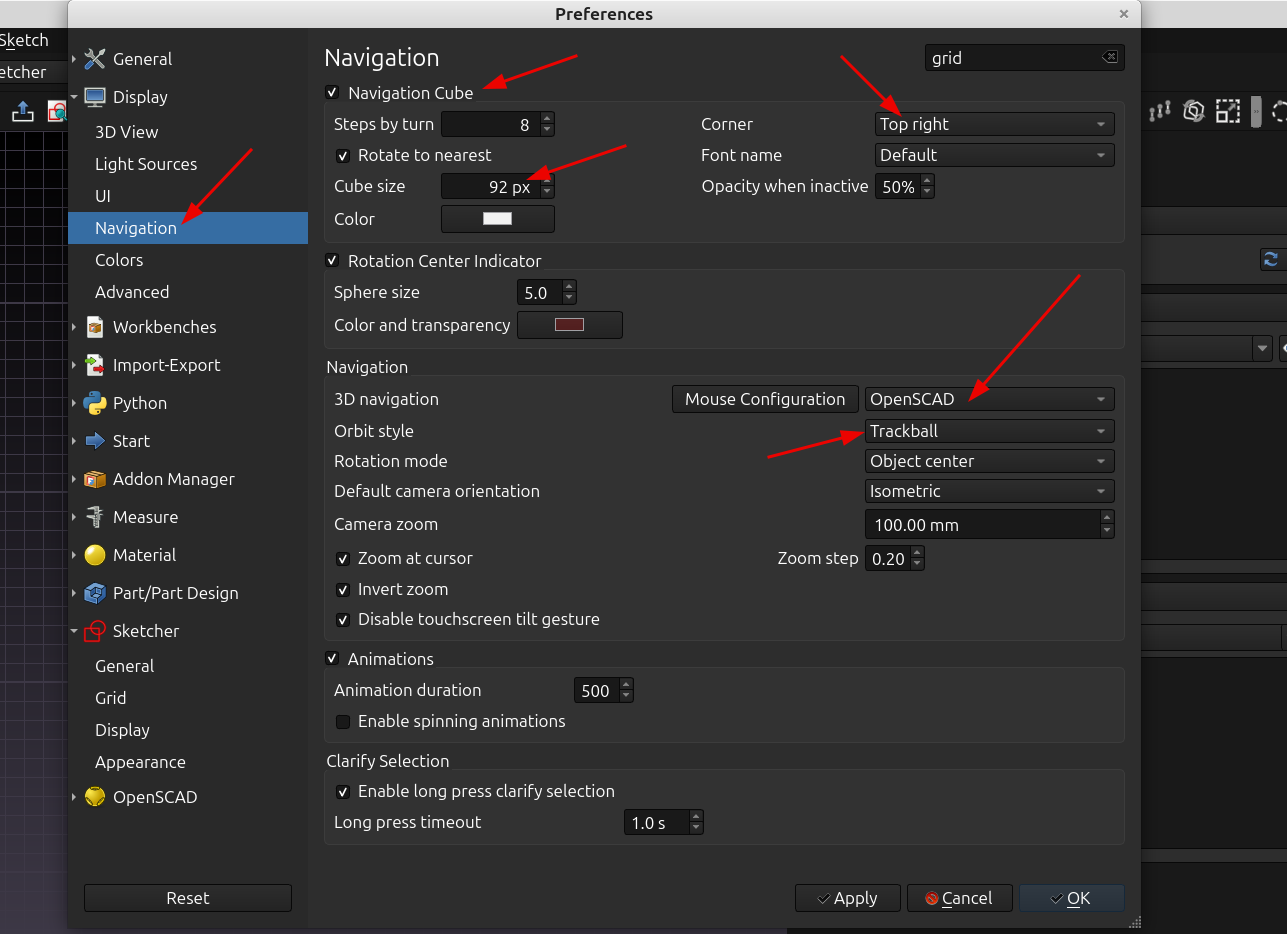
In the last post I mentioned changing the grid line colors but didn't explain how it was done so I will cover that first. You will notice a search box in the upper right hand corner of the preferences dialog, just type in the item you are looking for and it will automatically bring up the settings for the item, here I entered "grid" and as you can see you can set the default properties of the grid. Using search saves time by not having to scroll through all of the drop down menus on the left hand side to find a setting
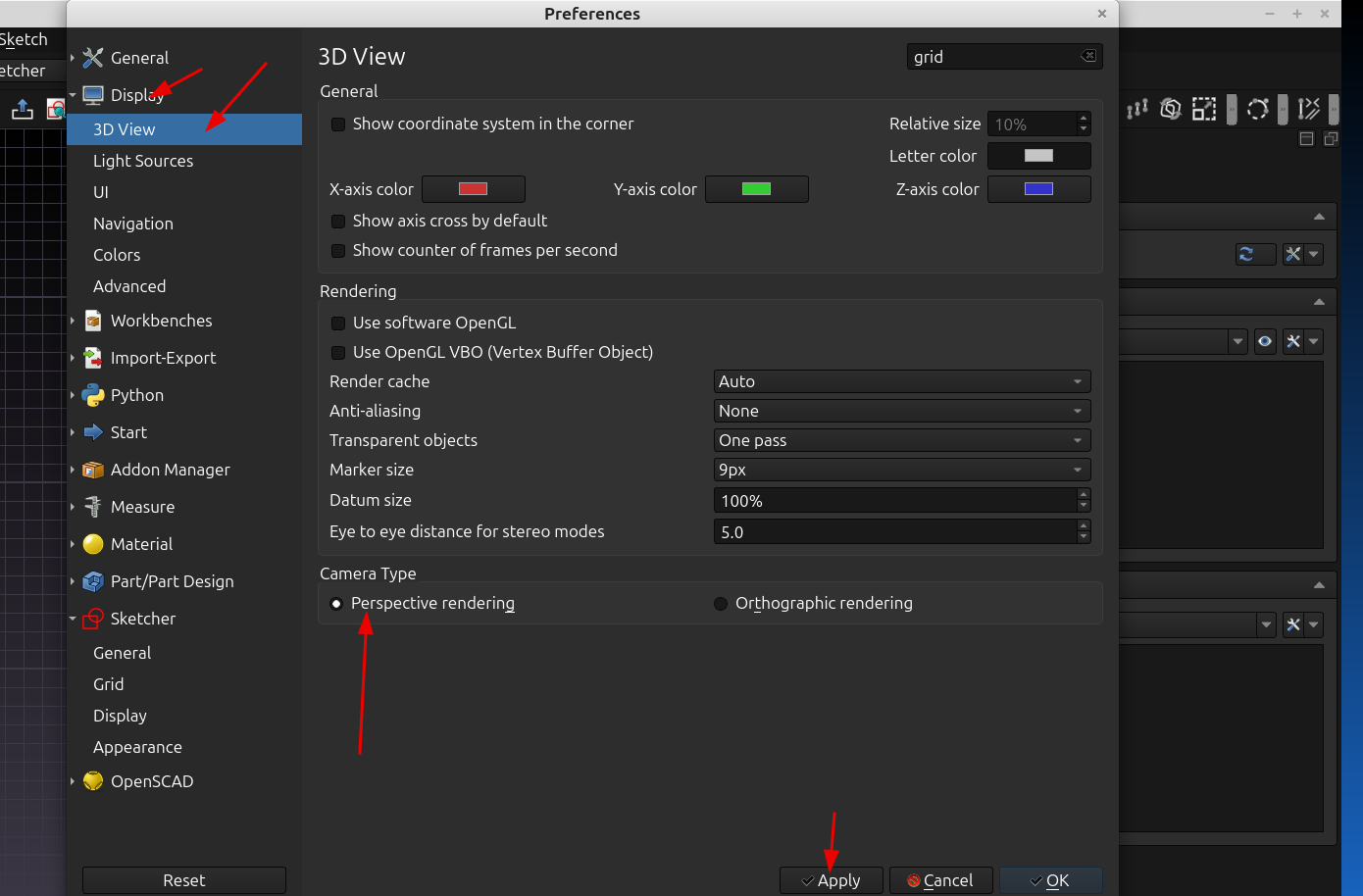
Having the default view set to "perspective" is a preference I like so I went to Display>3D View and selected perspective rendering as the camera type.
I am aware that for certain things like line drawings and blueprints an orthographic projection is a better way to visualize a 2d drawing, but for some reason when using 3d cad I just prefer a perspective view as default.
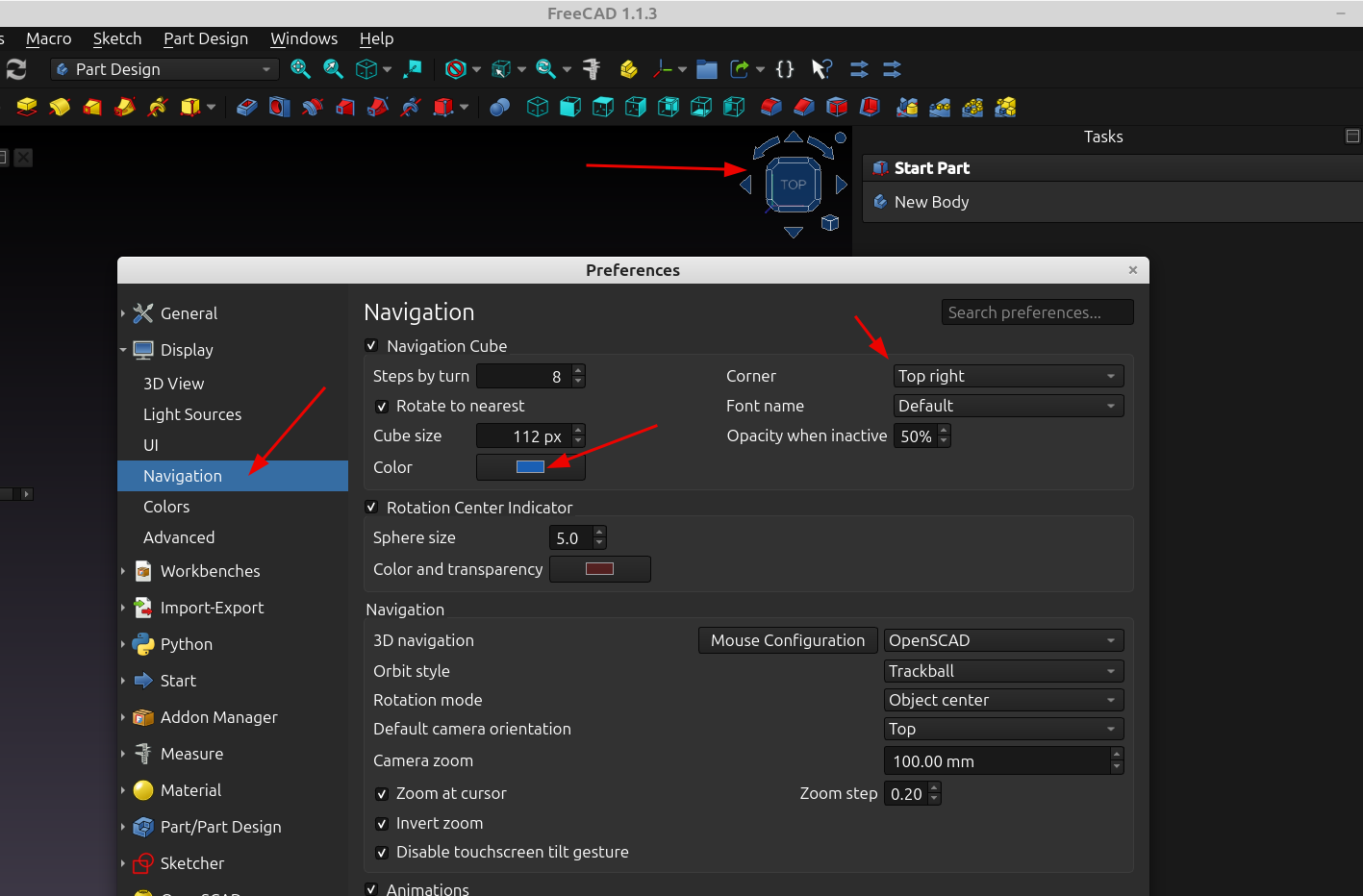
The next thing I always change is the size and location of the navigation cube in Display> Navigation. I prefer to place it in the upper right hand corner because it seems less intrusive and I leave it enabled because I do use it to reset the view if I get way off track. The other setting I change is the mouse setting to "OpenSCAD" and "Trackball" because I like the fact that I can pan, select and zoom easier in this mode and I guess I'm just used to how it works, I'm sure there is a reason that the developers have decided to "emulate" the specific mouse behavior of different cad programs, but for me eliminating that and just having a general mouse configuration that I could save different presets to would probably work better, as it is when you right click you are stuck with whatever menu someone decided they wanted to pop up instead of being able to select what you need.
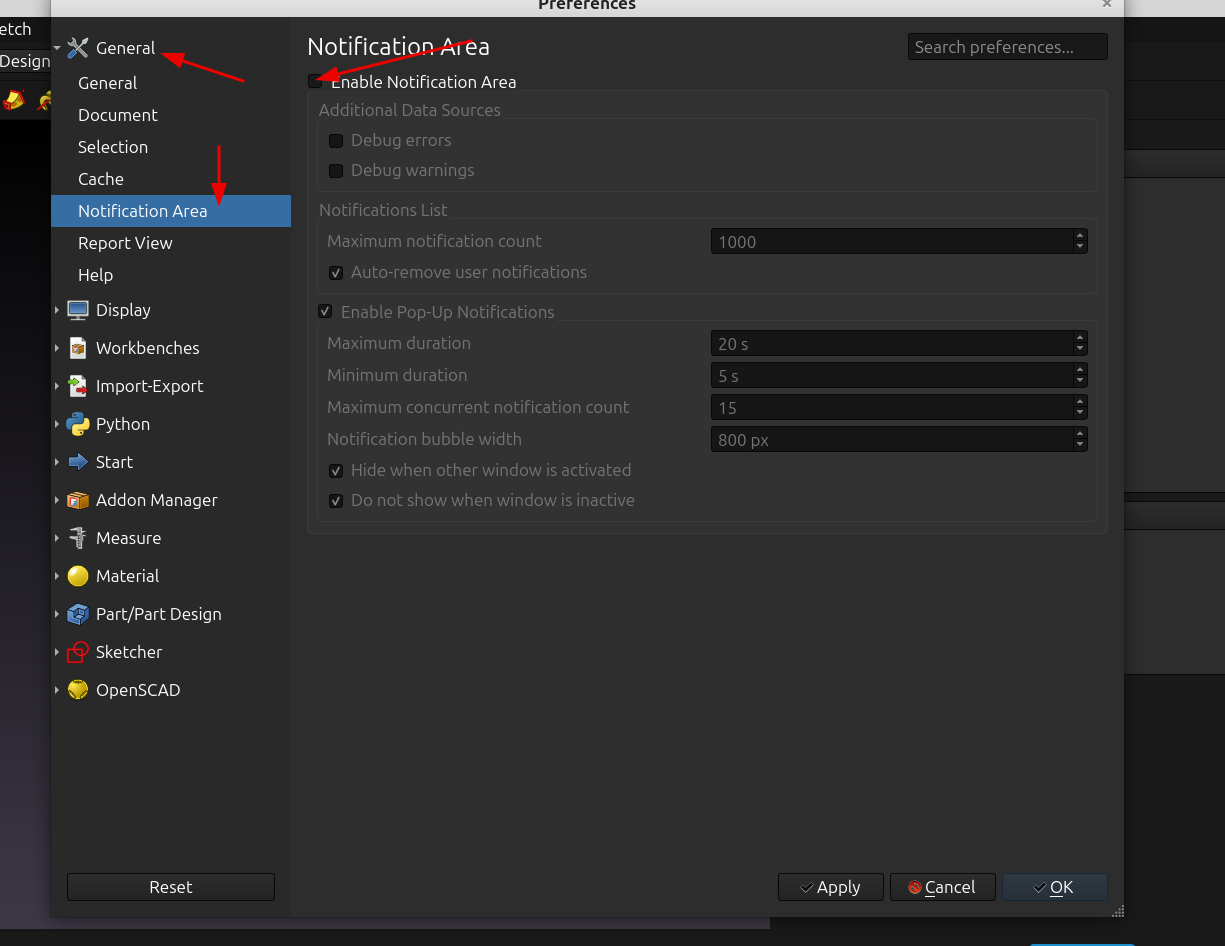
Additionally I turn off the "notification area" because it is way too distracting, I can see it's utility if you have a super complex model and you want to make sure there are no mistakes so you can share it with a group, but for me I really don't need 500 messages telling me what lines aren't constrained and what not. I'm sure some more advanced users would disagree with me and there's probably a better way to use it.
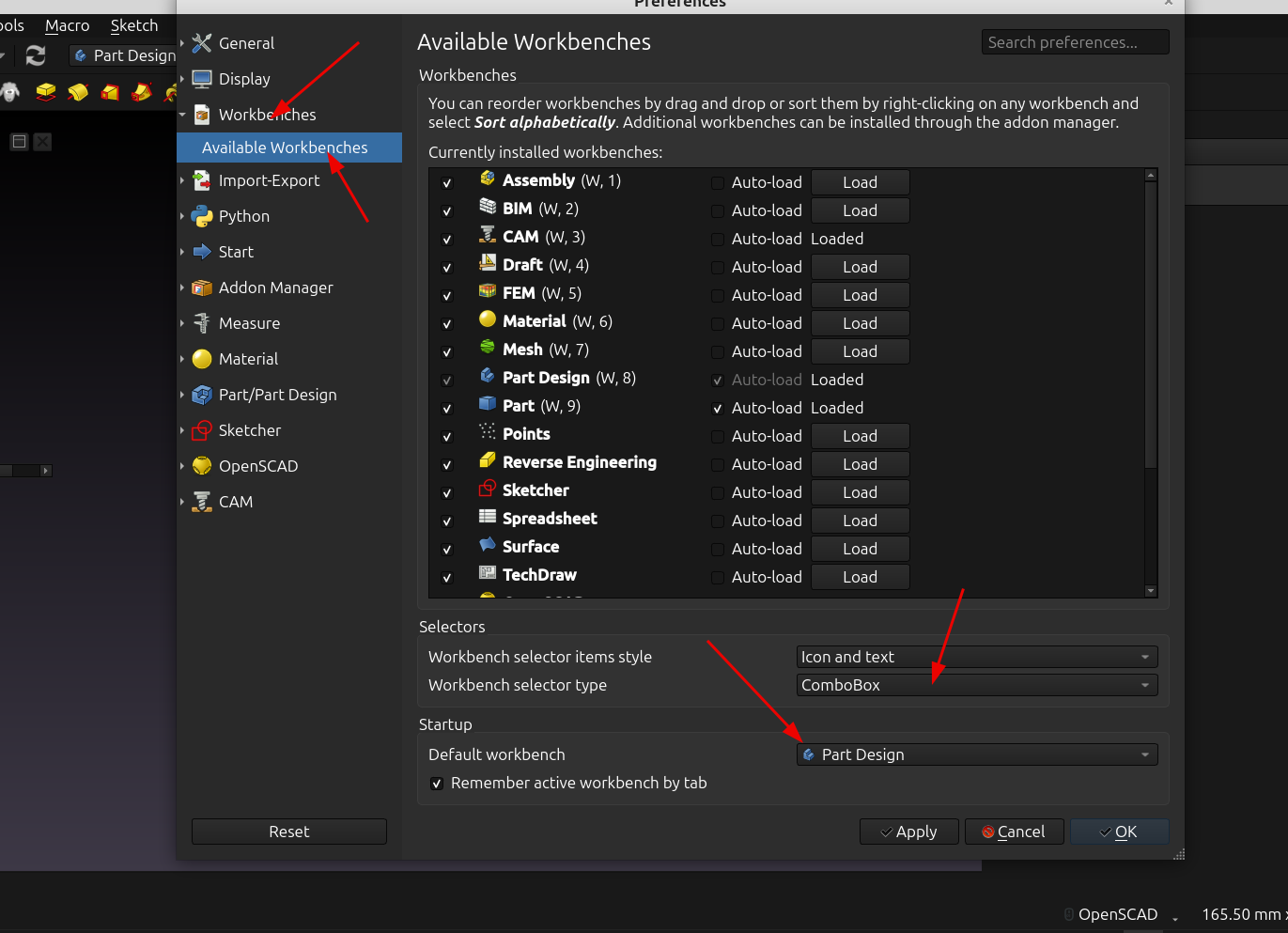
I also set the default startup workbench to "part design" because that's the one I use the most:
You can also select themes and what not, the list is pretty large so I would recommend going through each item and just taking a look at it, personally I really didn't need to change much to make the GUI easier for me use.
One last thing is relocating icons on the tool bars, removing the ones you don't use and prioritizing the ones you do use, and setting up custom keyboard shortcuts:
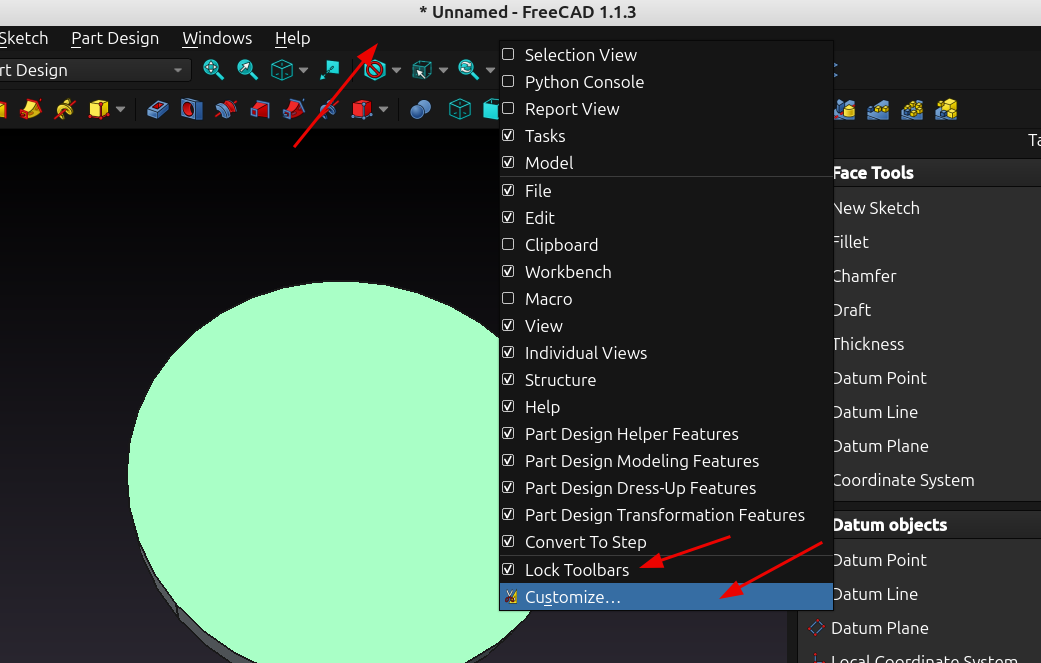
Right click anywhere on the toolbar space and select "customize"
Adding an icon to the toolbars is pretty easy just got to the toolbars tab, select the item you want to add create a new tool bar for it by pressing new then select the add arrow to add it:
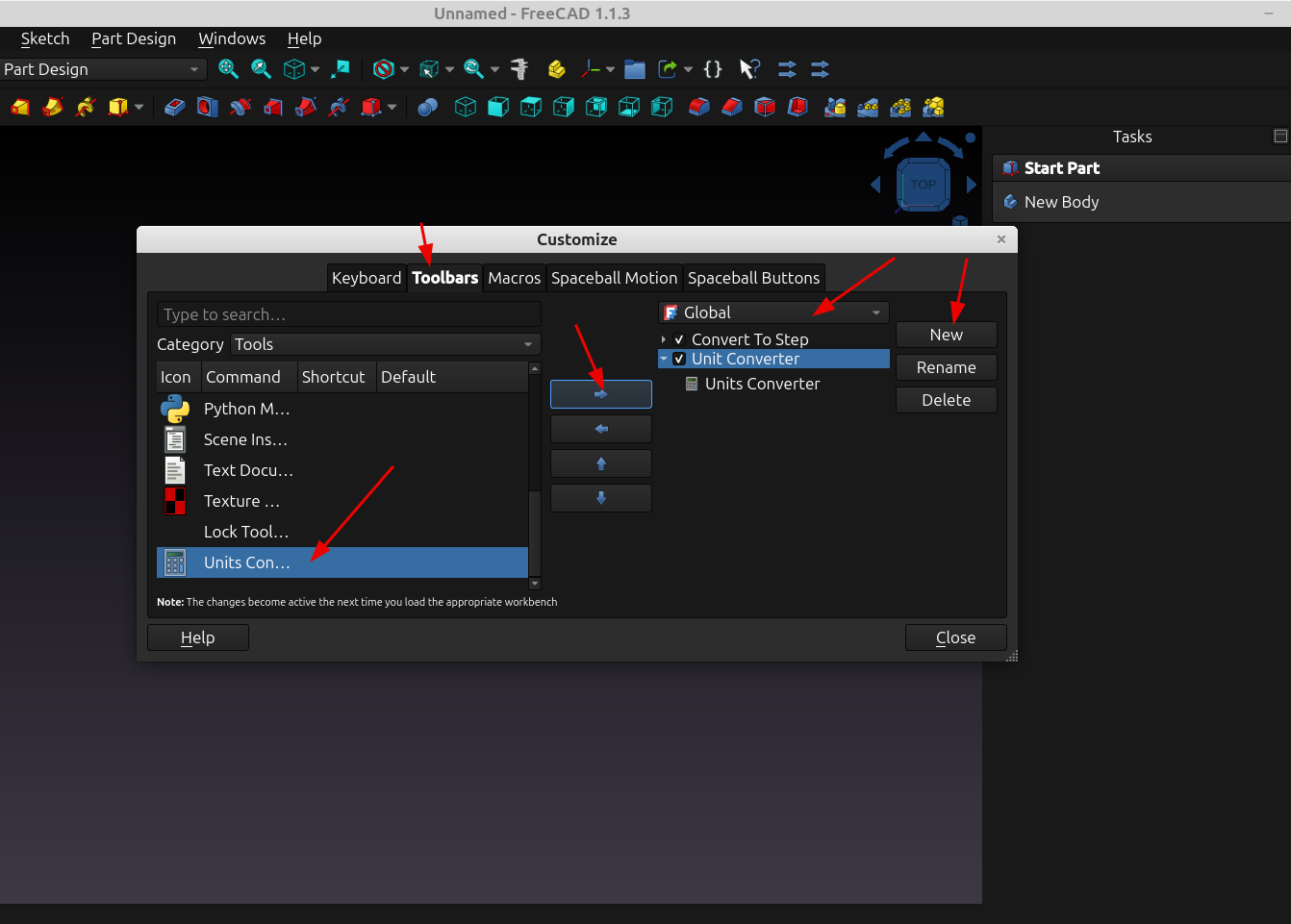
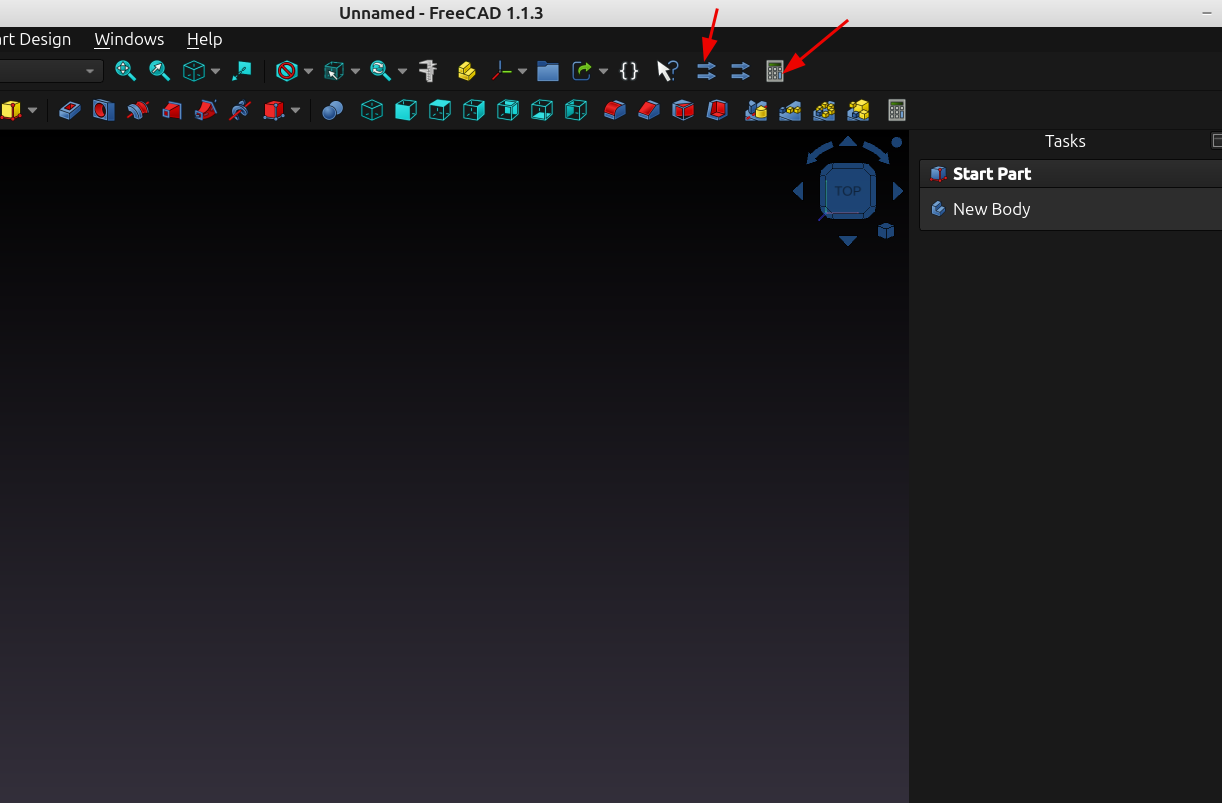
Here you can see the custom menu items I added for the stl and 3mf to step conversion macros I covered in post #156 and the one I just added for the units converter:
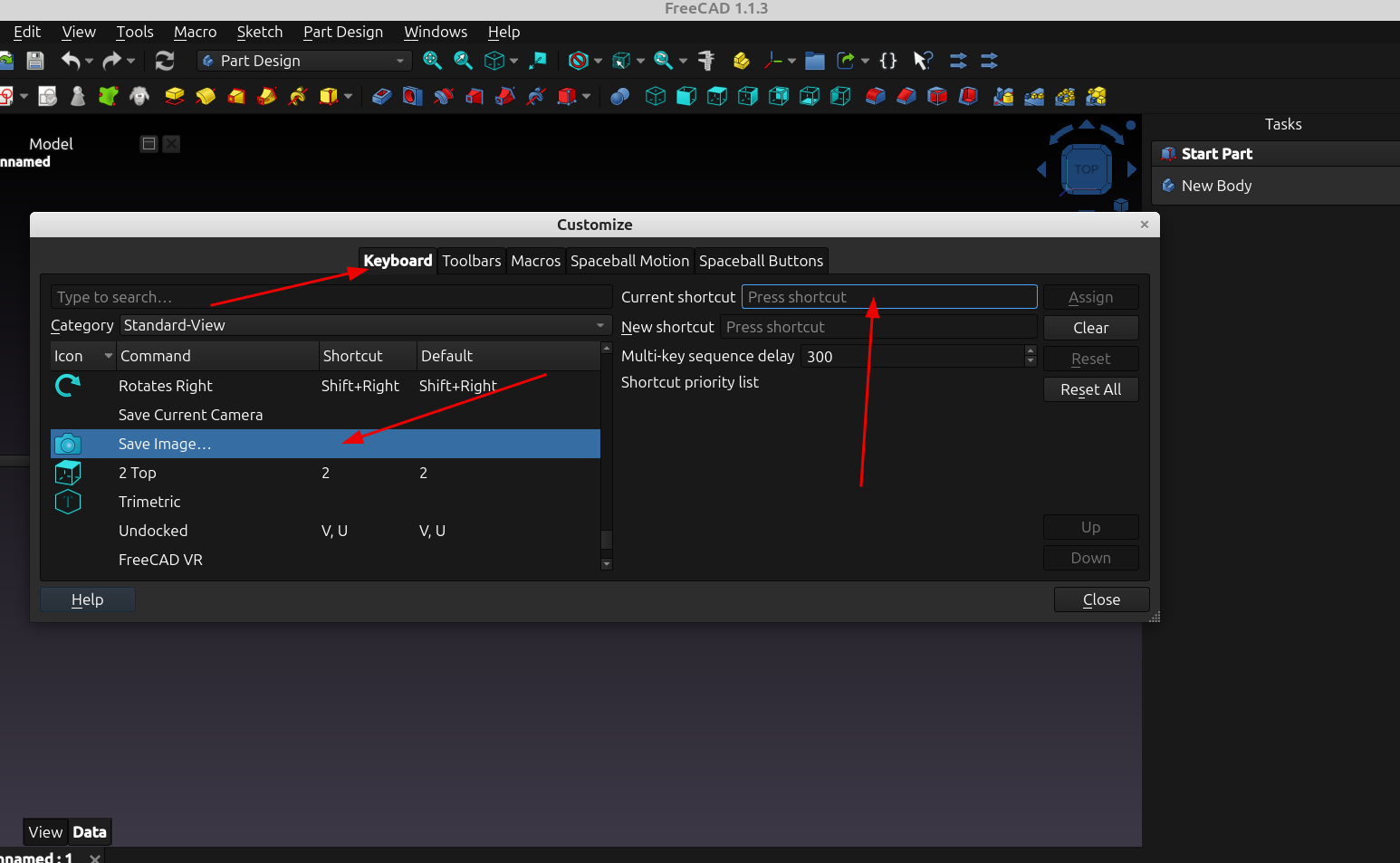
Changing the keyboard shortcuts is pretty easy also, going through the list you can see which items have shortcuts assigned and which ones don't:
Hopefully this post will help a new user that is watching a tutorial video or sees a custom interface and wants to set theirs up the same way to at least know where to start, and help remove some of the misconceptions floating around that FreeCad isn't very flexible. If you do see these types of comments just realize they were probably never pointed in the right direction because FreeCad is pretty easy to use if you are familiar with a few simple things right from the start.