3D part design with Inkscape and OpenSCAD #147 : Experimenting with transparent overlays to get better traces from the auto trace module.

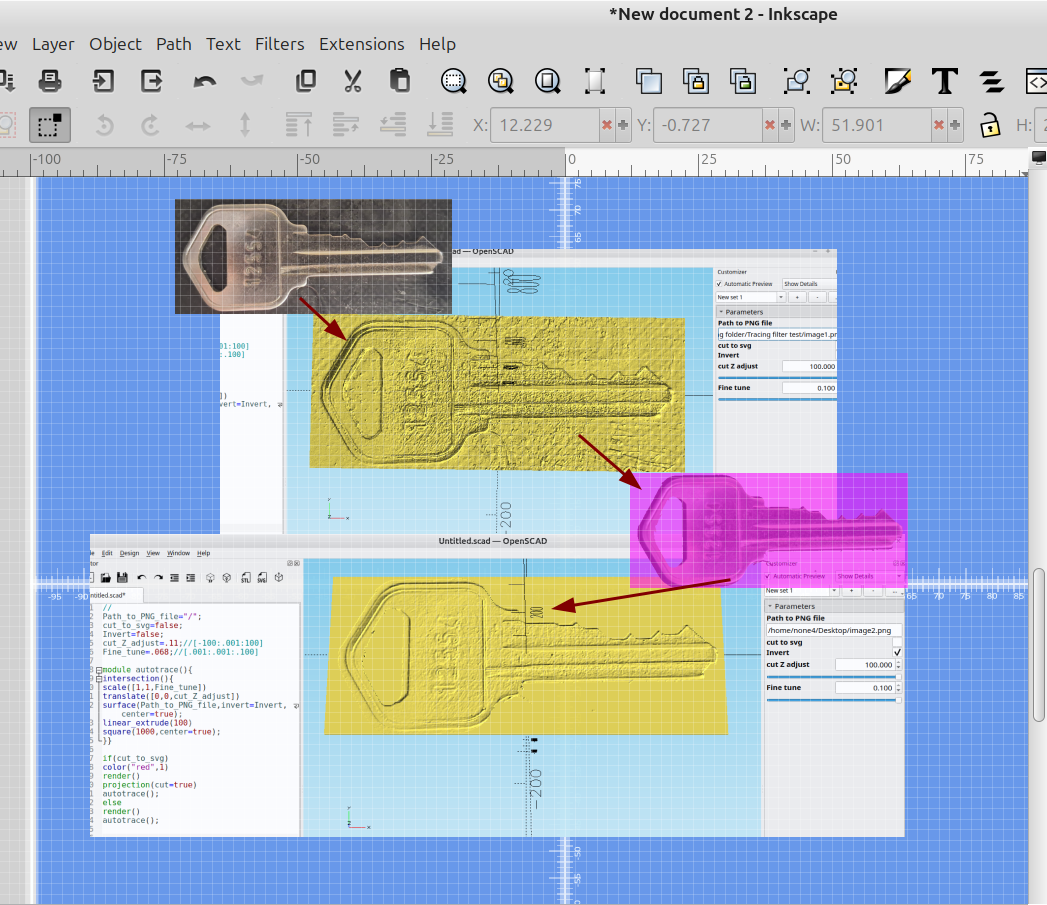
In post # 127 I made a simple module to trace the outline of a png file:
 Bob
Bob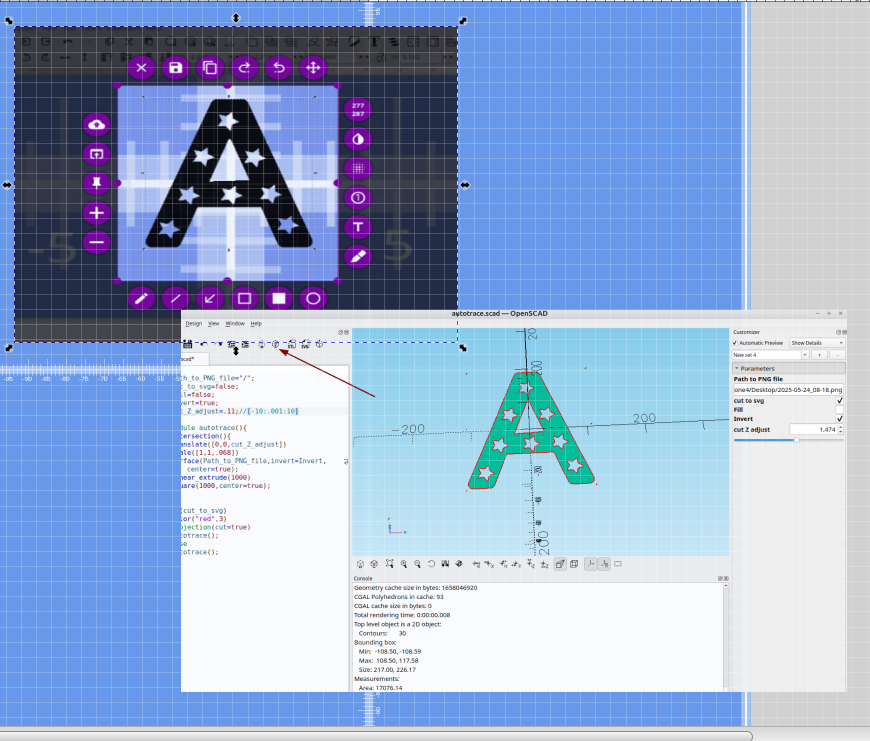
We all know how time consuming it is to trace around an object to get a good outline of it, I wanted to see if I could make a simple filter by overlaying a transparent colored square over the image and then run it through the auto trace module again to see if I could improve the trace, here are some results:
I started out with a picture of an old key
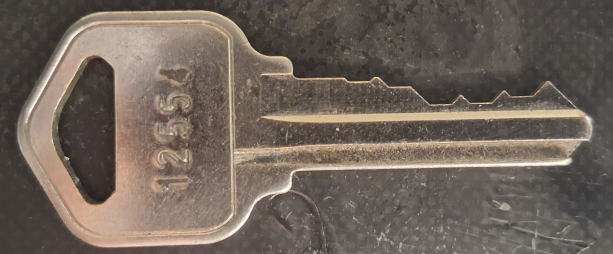
The trace wasn't bad but it needed a lot of cleanup
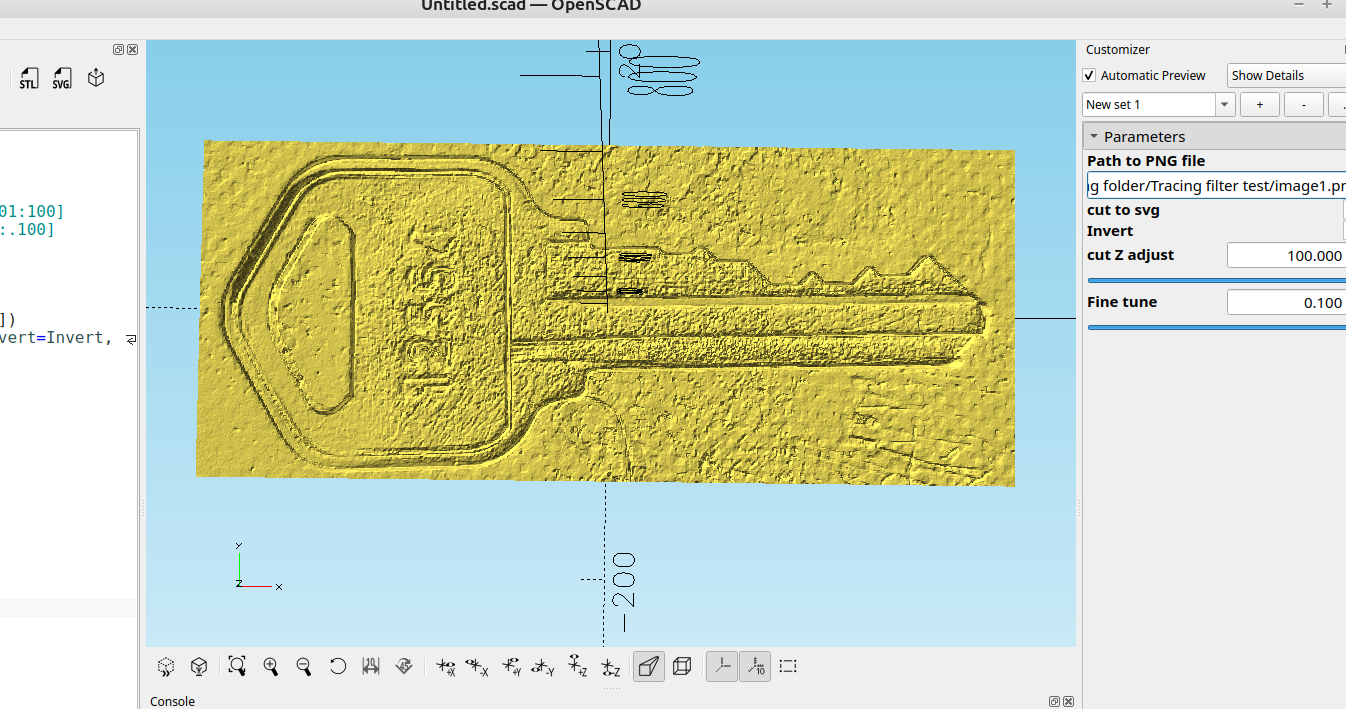
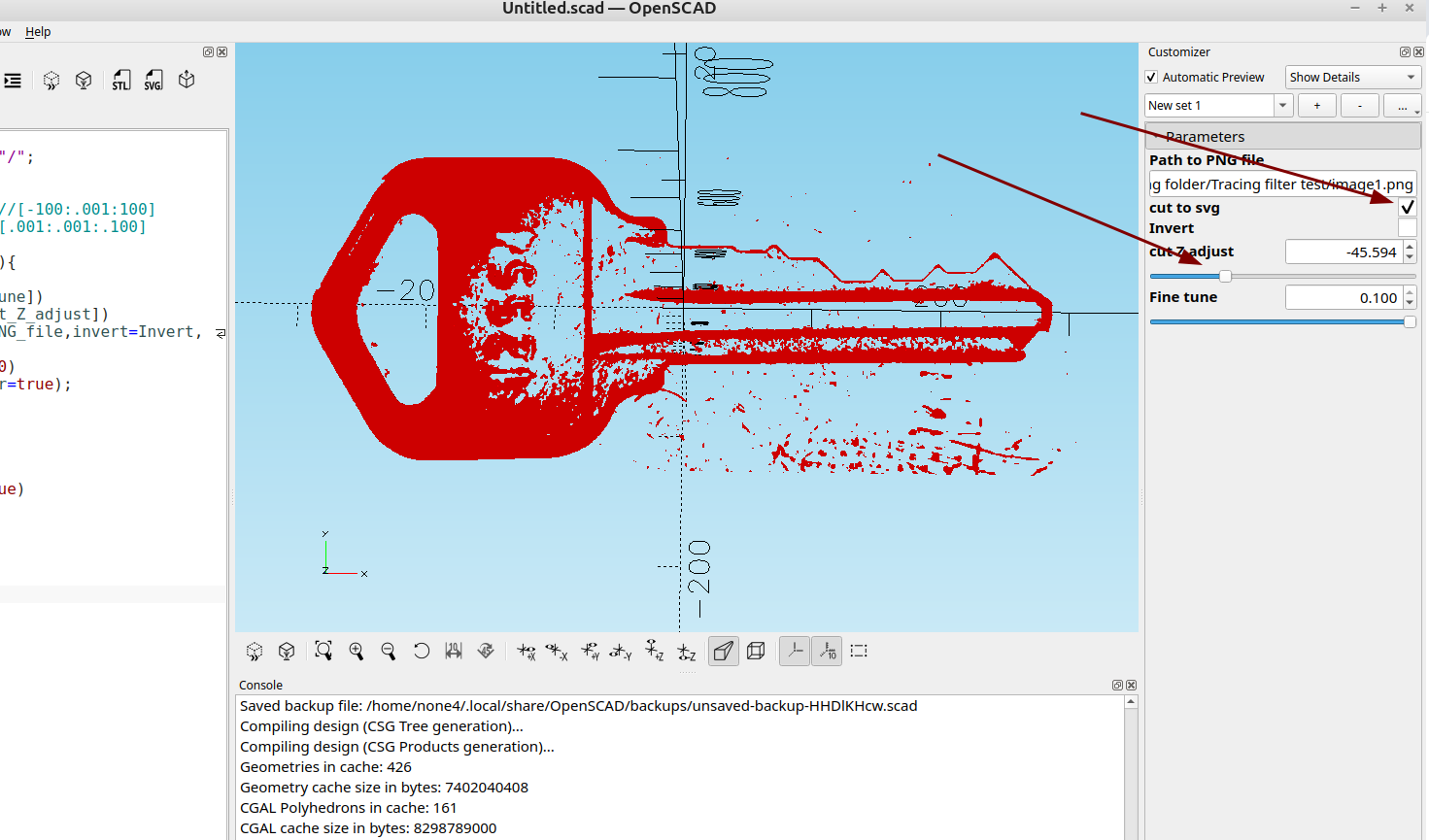
I adjusted the values until I had an outline of the key that the outside shape didn't have any breaks in it and exported the svg:
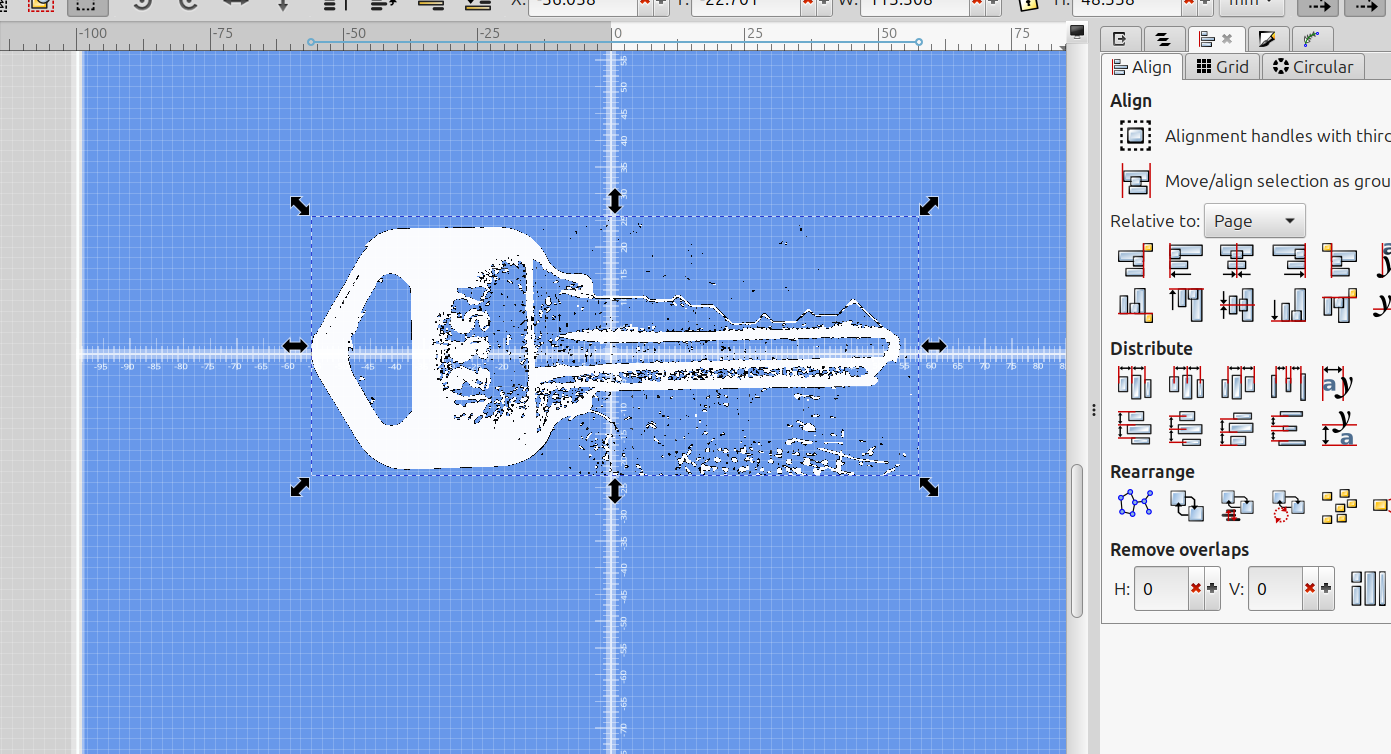
I then imported the svg file into Inkscape and used the shape builder tool to select just the inside area of the key:
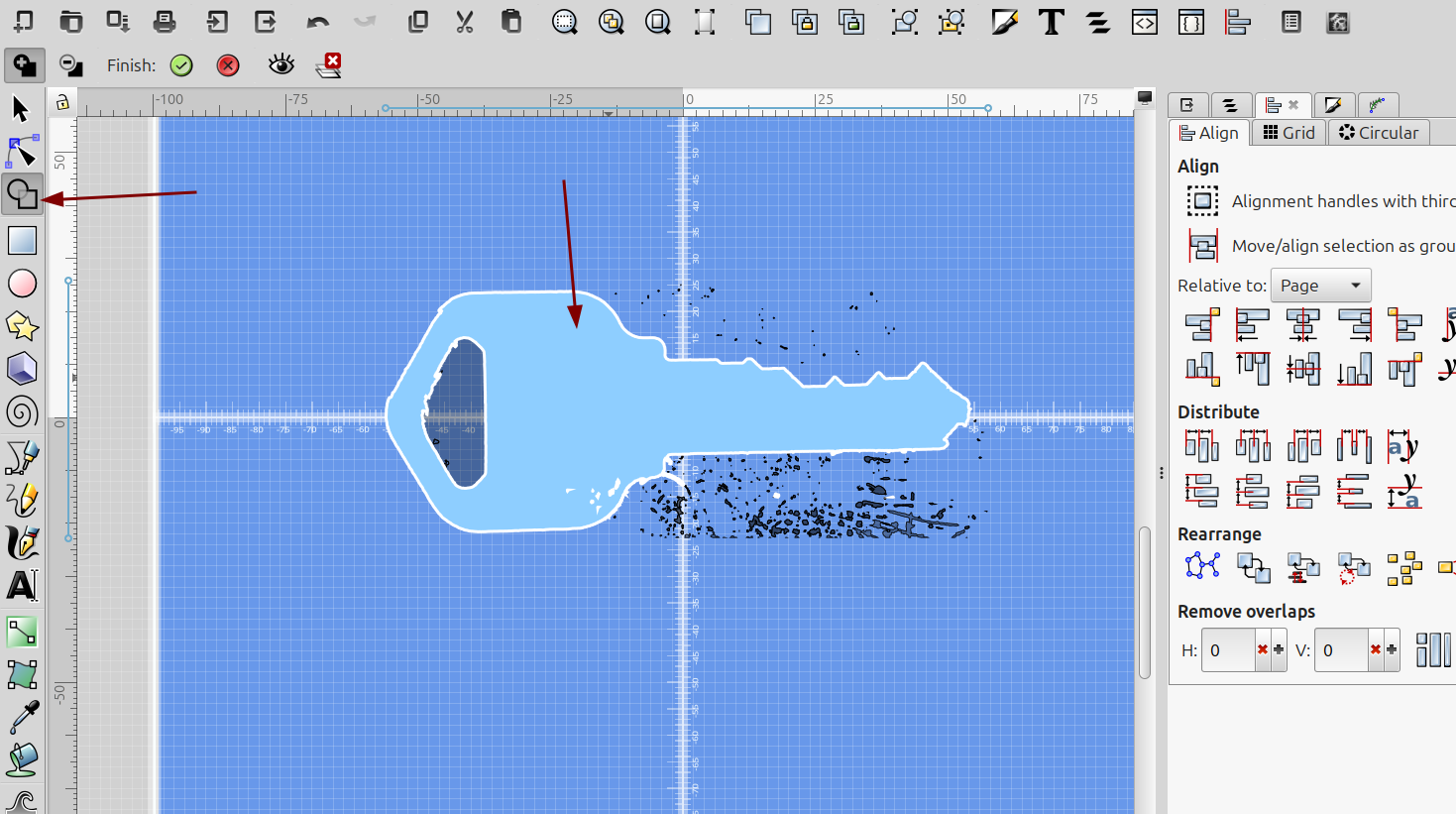
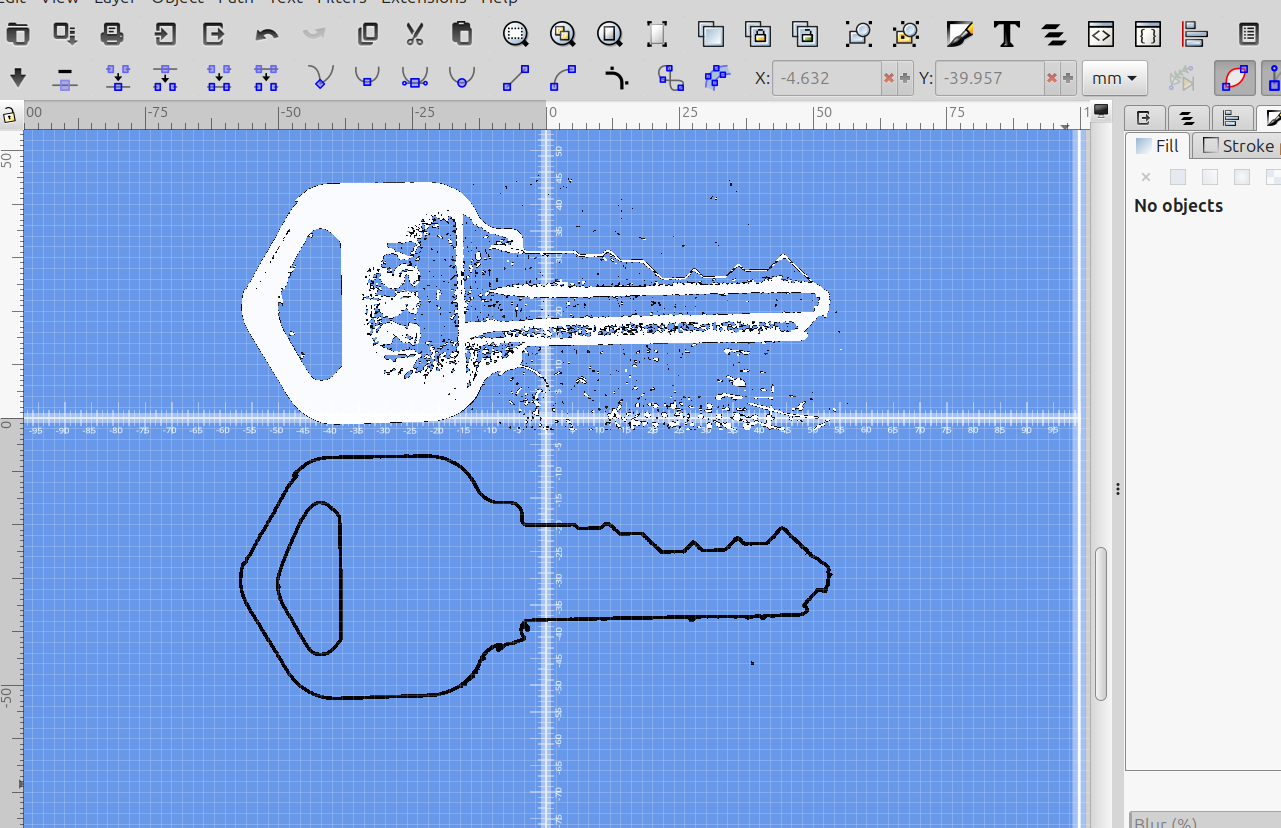
I separated the new image the shape builder had made from the original by dragging it to the side, then I turned off the fill and increased the stroke size for it:
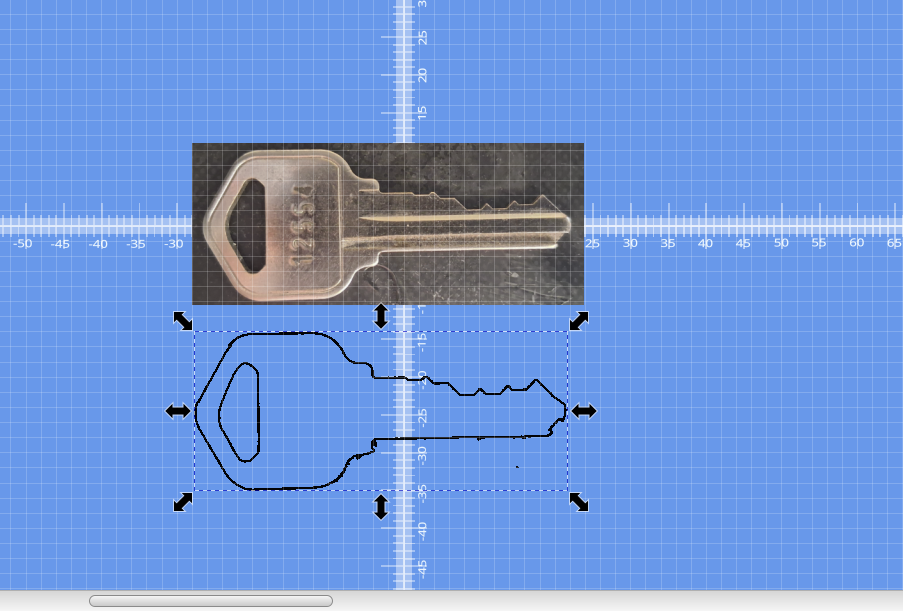
Then I imported the original picture, selected the outline and resized it by holding down shift and control and dragging one of the corner arrows with the mouse so it was just larger than the key:
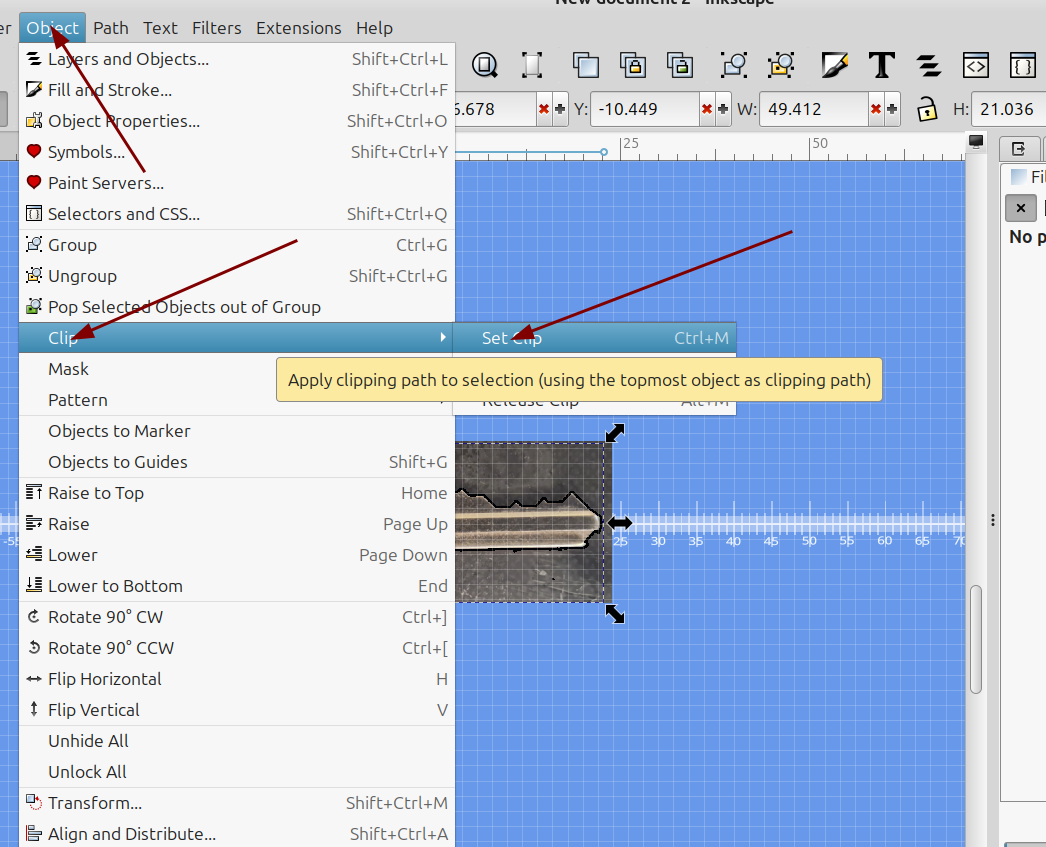
I aligned the outline with the original, selected the outline then the picture of the key and went to Object>Clip>SetClip. This will crop the image to the outline shape and get rid of the stuff in the back ground:
This left me with a really good trace of the key:
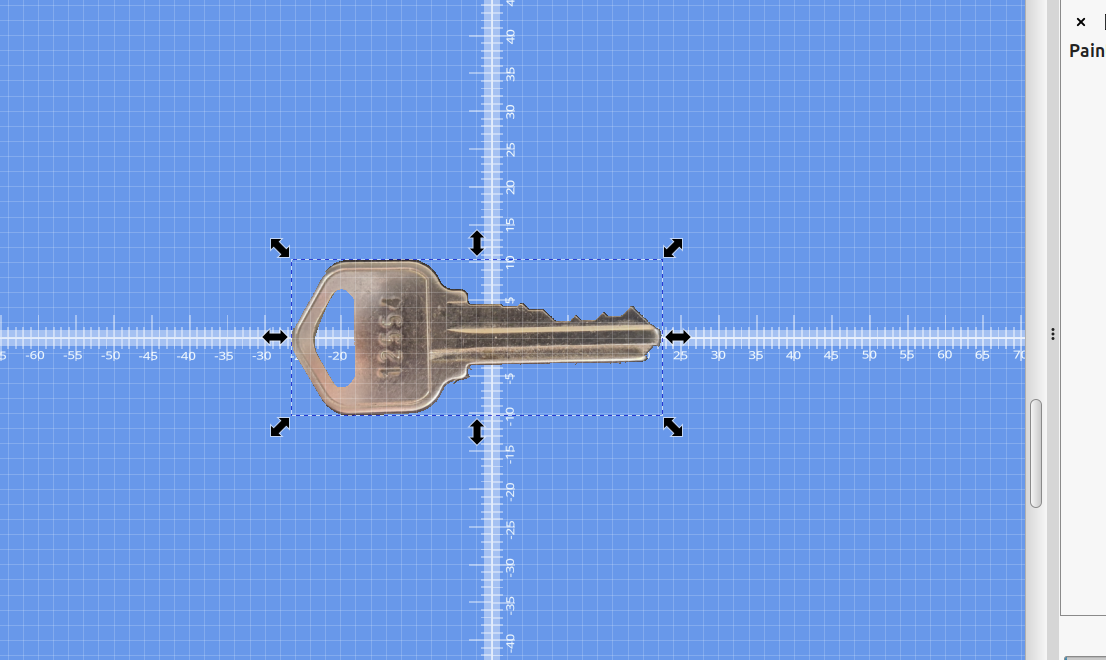
I re-imported it into the auto trace module and as you can see while there is a lot of surface detail it has a little too much surface detail:
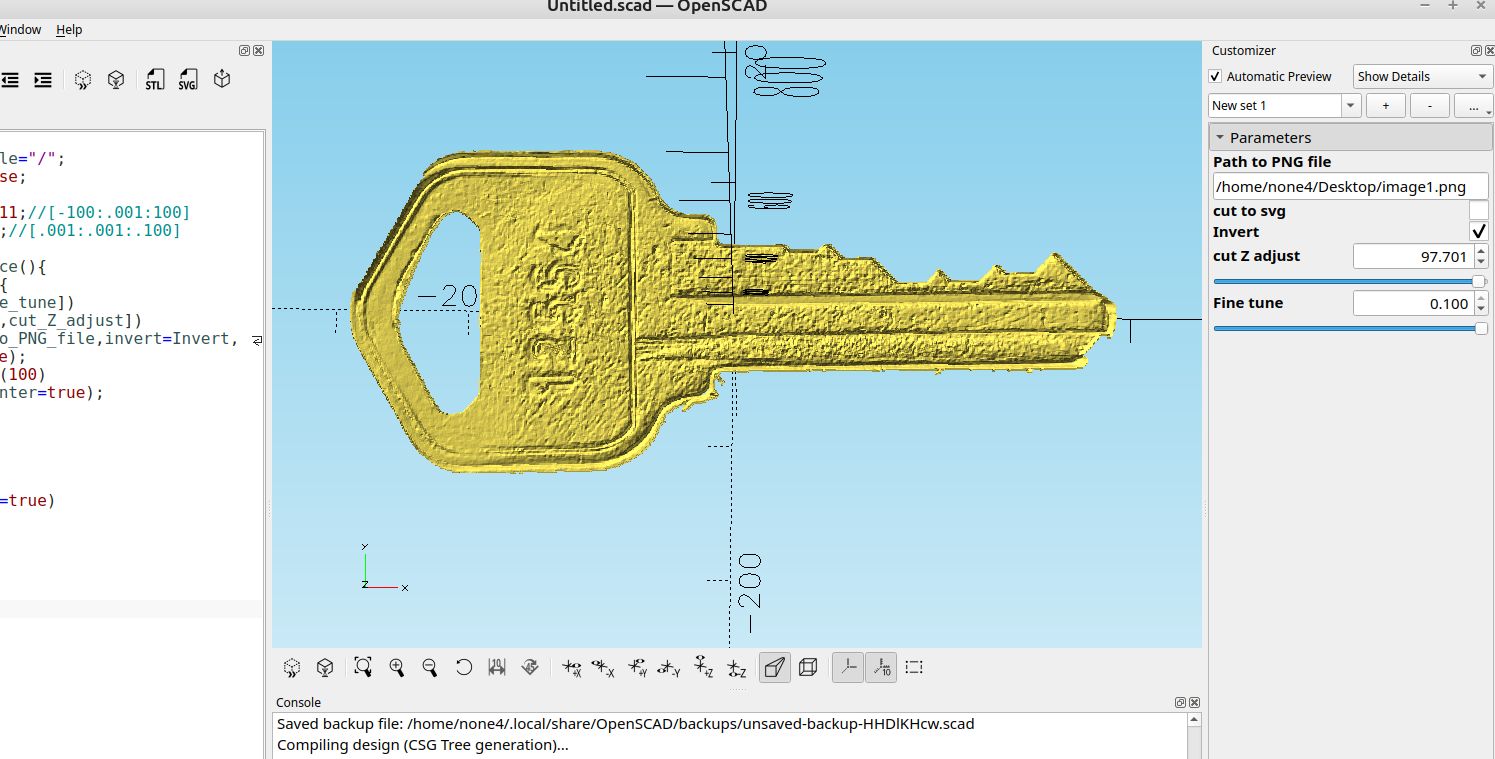
So I tried making some transparent overlays by making a square and changing it's color and fill opacity to see if that would have any effect on the quality of the trace:
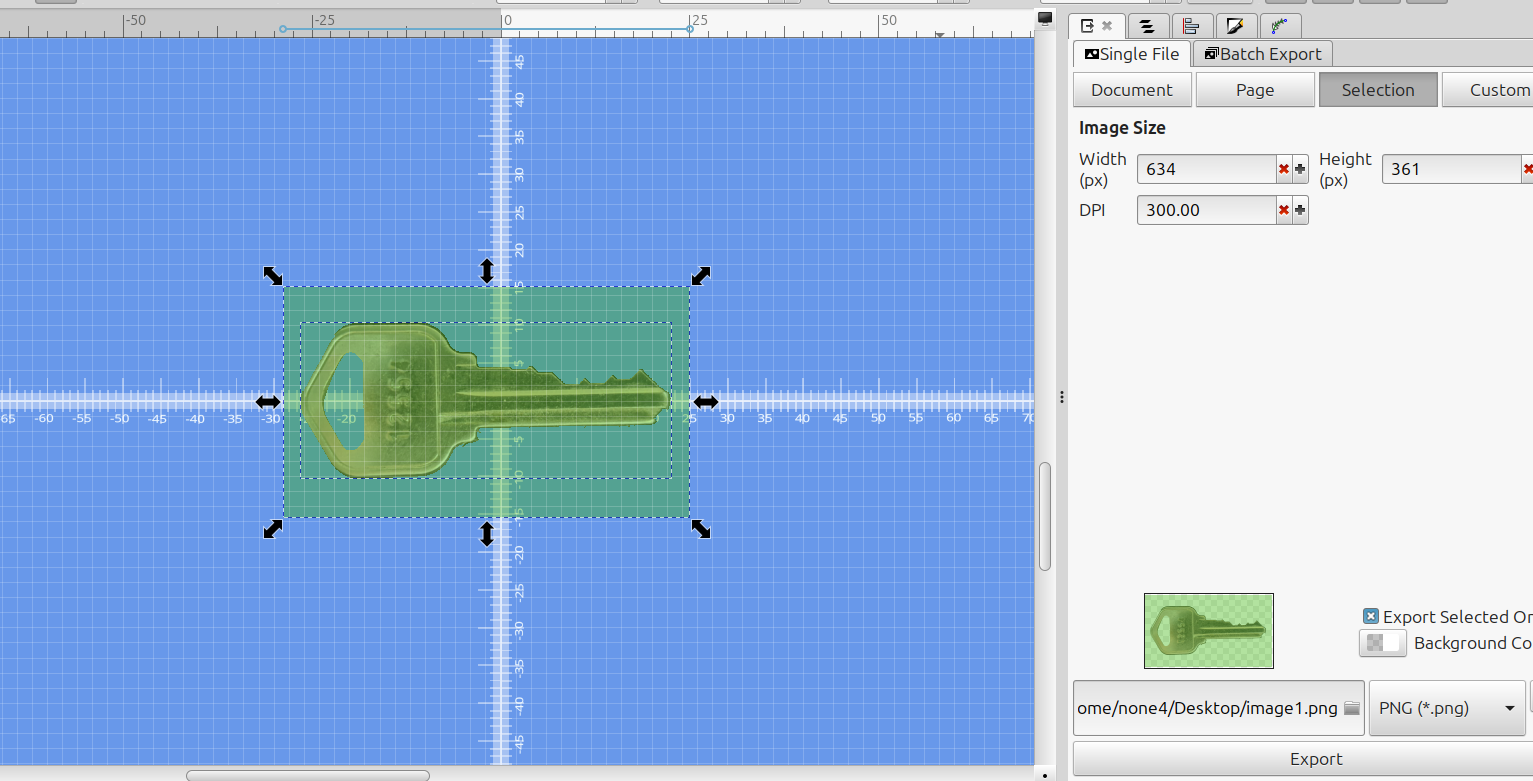
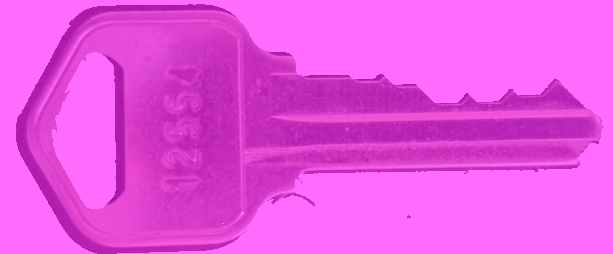
Below is my first attempt a removing the background by drawing a line around the key by hand with the mouse, the method I detailed above works way better and is much faster.
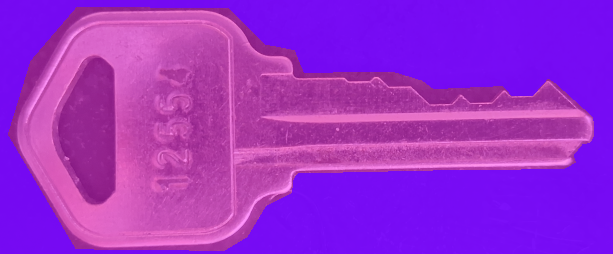
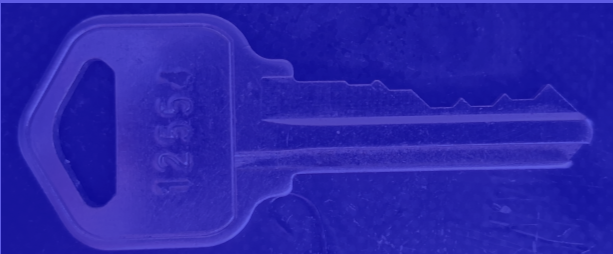
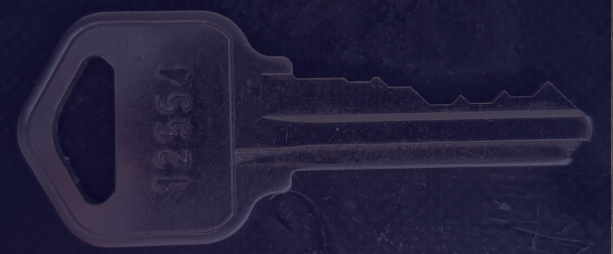
While the red and purple overlay did seem to help get rid of some noise I will need to do more experimentation to see if this method actually does have a usable effect. I haven't tried multiple overlays of different colors, etc...
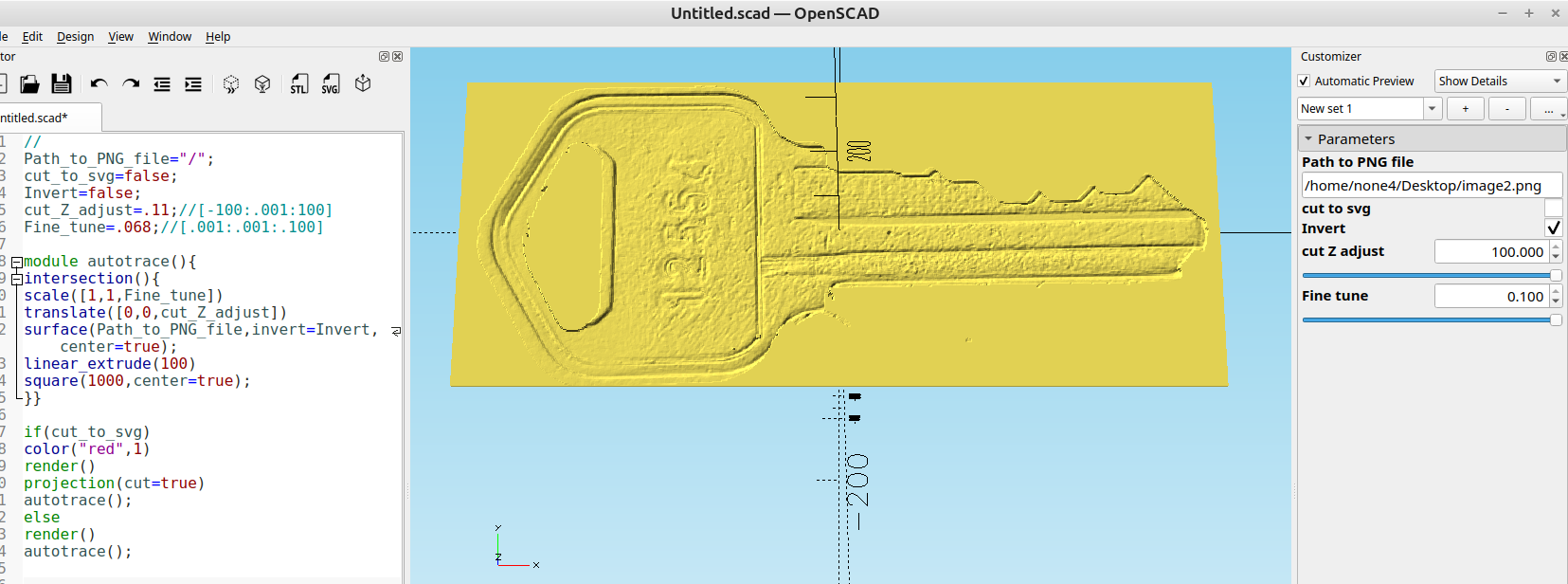
More experimentation will need to be done.
Inkscape tip:
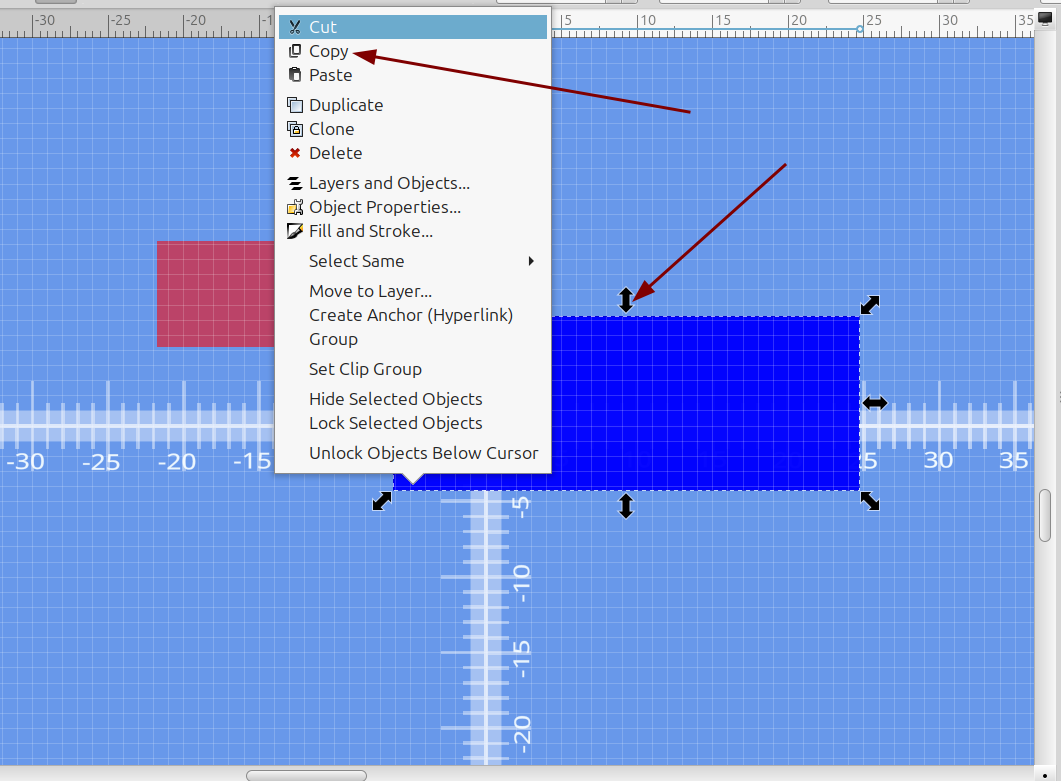
If you have an object and want to match it's size or shape it's easy to do just select the object, right click and select copy:
Then go to Edit> Paste...> and select the attribute you want to paste. Notice there are two "Pastes" this is the one with the ellipsis (...)
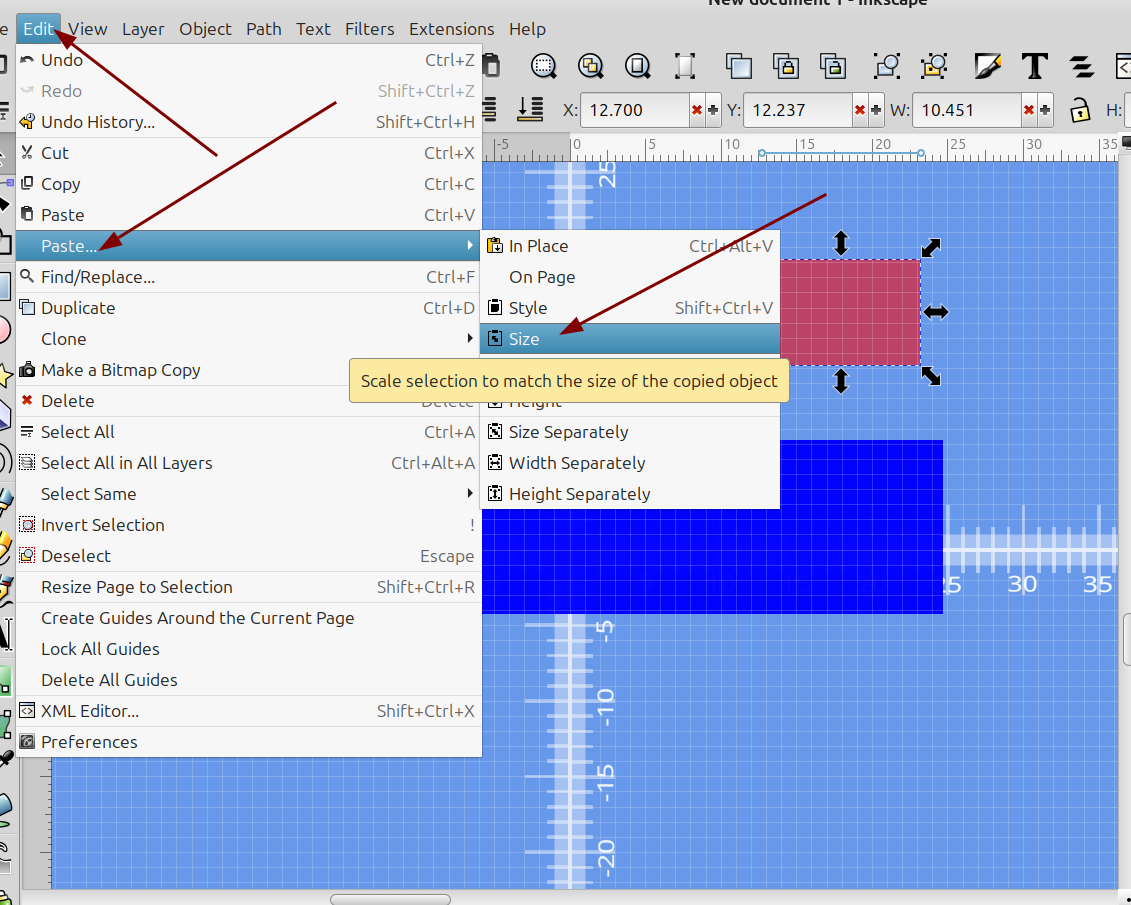
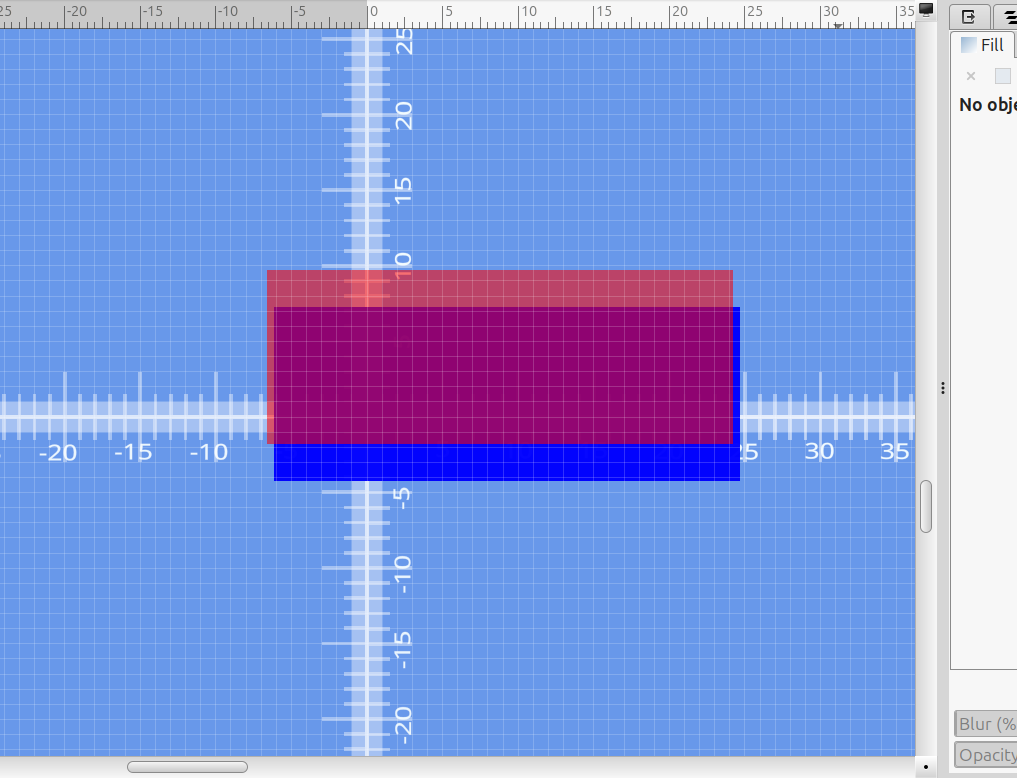
This is handy if you have an object that is a different height but you want it to be the same width etc.